


Phone Videos to DVD - 4 DVD Creating Methods with Detailed Tutorial




The holiday season is when we share our memories during the year with family and friends. Imagine that watching DVDs burned with all the laughter and tears, or just daily life we filmed with our beloved, isn’t it a remarkable moment?
Nowadays, we usually takes videos and pictures with our phones as it’s much more convenient and faster to capture the special moments at once. So, how to put videos from phone onto DVD to make it play on TV and save space on our phone? In this article, I’ll share with you some best methods to convert mobile phone videos to DVD.
 iFunia DVD Creator
Best Phone Videos to DVD Burner
- Burn DVDs at home without going out looking for services.
- Get your DVD burned with videos of any format in a few minutes.
- Dozens of DVD menus to choose for various occasions like wedding, birthday, party...
- Customizable DVD menu background image&music, layout, buttons, text fonts, title frames and more.
- Built-in video editor to trim, crop, add watermarks, chapter, subtitle, etc.
- Able to convert phone videos to DVD in high quality or adjust bit rate to compress large files.
- Allows to preview the DVD project before burning.
- Easy to use and well optimized for Mac and Windows.
 Free Download Windows 10 or later
  Free Download macOS 10.12 or later
Can I Connect a DVD Player to My Phone?
Yes, it’s possible to connect CD/DVD drive to Android phone with OTG support, besides, you have to install an app like MLUSB Mounter (paid) to be able to play the DVD content on your Android.
For iPhone, you have to get a drive like LiteOn drive to connect CD/DVD to your iPhone.
Once connected, you can play the disc content on your phones, but if you want to transfer phone videos to DVD, keep on reading and find a method that suits you most.
Part 1: Phone Videos to DVD Service
DVD service is still an option for phone videos to DVD copying and transferring by retailers even though it declines in nowadays digital world. DVDs are physical and loaded with all the memories we recorded in life, this makes discs unique and irreplaceable. Hence you just give all the videos and photos to transfer services, they make the DVDs and you’ll receive the DVDs with all the videos converted.
Disadvantages of Phone Videos to DVD Service:
- No direct service. You have to first transfer the videos from your phone to a memory card and send the card to the service.
- Long-time waiting. You have to wait for 3 - 5 weeks for the DVDs to be done and shipped to your home.
- High price. It depends on services and the video length, but in general, it’s expensive. For example, in Walmart, it costs $15.96 for the first 30 minutes and $5.46 per 30 additional minutes.
- Limited options. The services often don’t offer editing and customization options, you cannot make a DVD for a specific occasion.
- Unstable quality. Some services provide higher quality and others lower.
Walgreens Phone Video to DVD
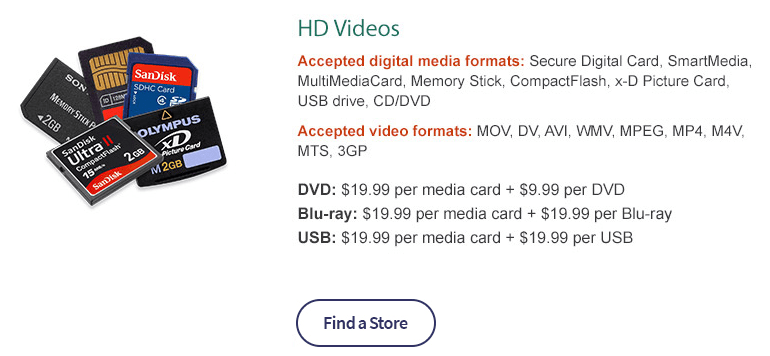
Price: $19.99 per media card, plus $9.99 per disc
Accepted video formats: MOV, AVI, DV, MPEG, WMV, MP4, M4V, MTS, 3GP
How long you can get it: 3–5 weeks
Walgreens offers a service to transfer videos from phone to DVD. It’s simple and convenient, and they uses high-quality DVD discs. You can choose between a standard DVD with a menu or a regular DVD without a menu.
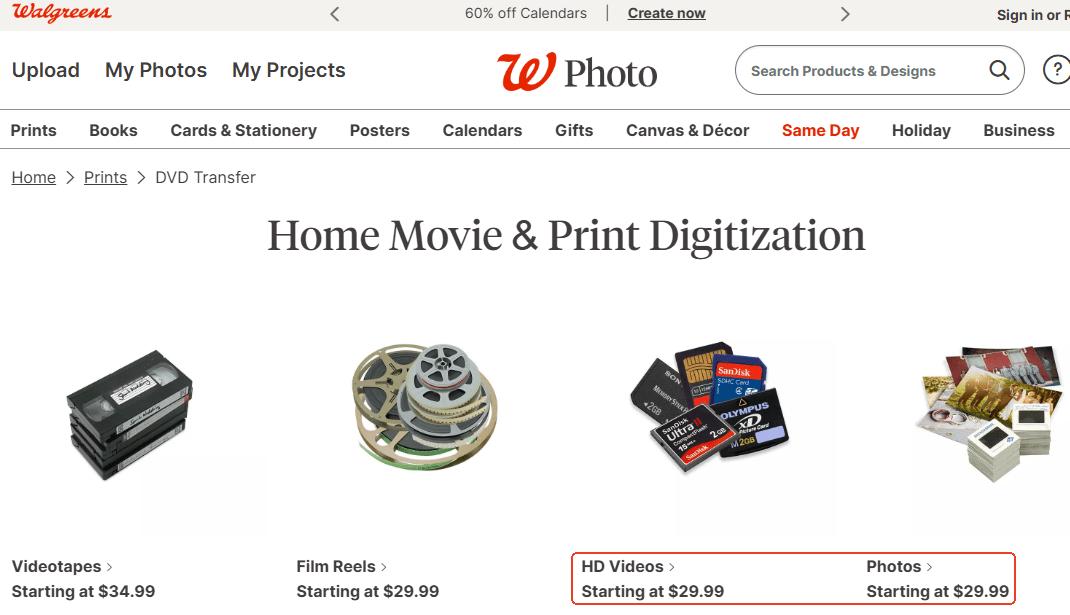
But it has to be mentioned that they don’t provide direct phone videos to DVD service, you have to first transfer the videos from your phone to a SD card, USB drive or other cards Walgreens supports.
Part 2: Convert Phone Videos to DVD with DVD Burners
Can you transfer videos from your phone to a DVD at home?
Yes, use DVD authoring software to create your own DVD in about 1 hour instead of waiting for a month, what’s more, in a much lower price. In this part, I’ll share with you some best DVD creators that I’ve been used for a long time.
#1. iFunia DVD Creator
Price: offer trial version, and $24.99 per month without limitation (they usually offer special discount at $16.99, and a lifetime plan at $38.99)
Accepted video formats: MP4, MOV, M4V, MKV, AVI, WMV, MTS, M2TS, TS, HD MKV, HD MOV, etc.
How long you can get it: you’ll get your disc burned right away in a few clicks
iFunia is a company dedicated to design digital media toolkits since 2009. Their DVD creator is a popular product loved by people around the world due to its professional burning features, support for any video formats, and rich customization options which help create special DVDs on Mac/Windows.
Wilson C. Myers from AlternativeTo pointed out that:
"iFunia DVD Creator can burn any videos to DVD Disc, DVD Folder or ISO File in high quality and at fast speed. It builds in a video editor for you trim, crop, rotate, add effects or watermark to the video. Also it provides an array of DVD menu templates to create DVDs for different occasions and events, even you can customize the DVD menus as you like."
iFunia Tutorial: How to Put Videos From Phone Onto DVD
Step 1: Make the necessary preparation.
Connect your phone to your computer and transfer the phone videos you want to burn onto the PC. Connect the DVD player with an empty DVD inside to your computer.
Step 2: Free download iFunia DVD Creator.
Free Download Windows 10 or later Free Download macOS 10.12 or later
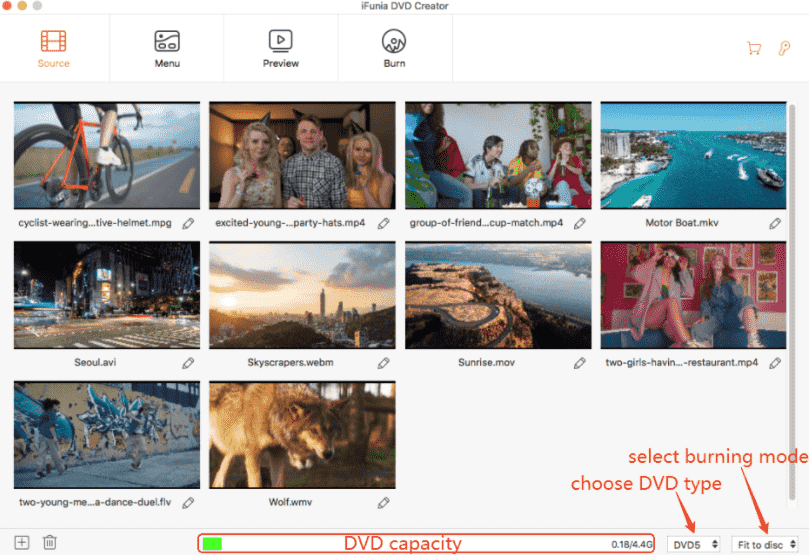
Step 3: Input the videos into iFunia. (Support any formats)
Click Add Videos on the home page or directly drag all the videos into the program. iFunia supports a wide range of common and HD video formats, such as MP4, MOV, M4V, MKV, AVI, MTS, etc. The input videos don’t need to be in the same format. You can put videos in different formats into one DVD.
Step 4: Edit the videos if you want.
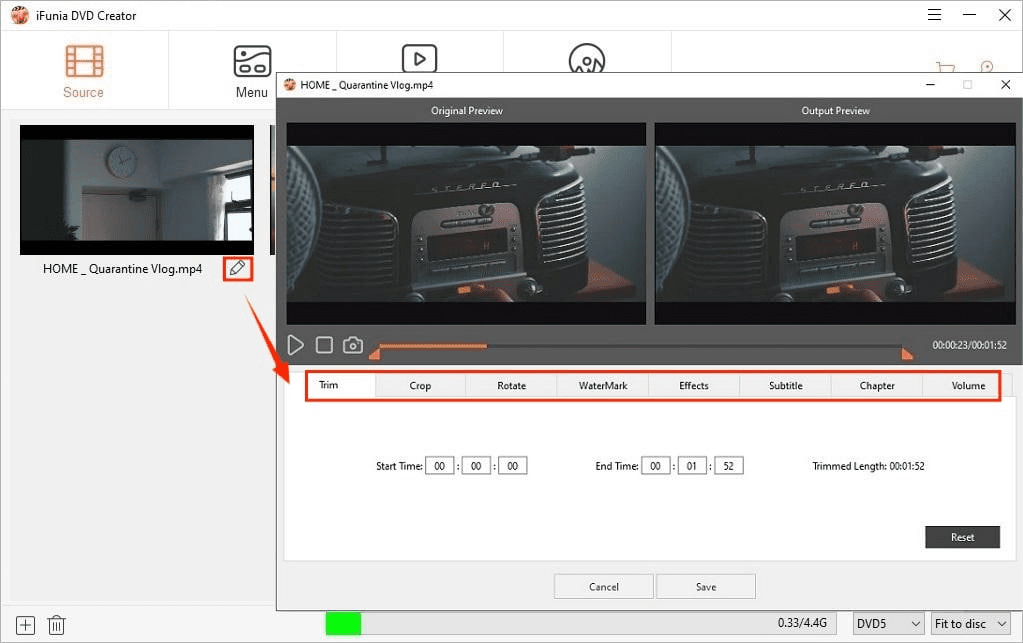
Click the pencil icon under the video to edit the videos by trimming, cropping, adding watermark, effects, subtitles, and etc.
Step 5: Define a DVD menu.
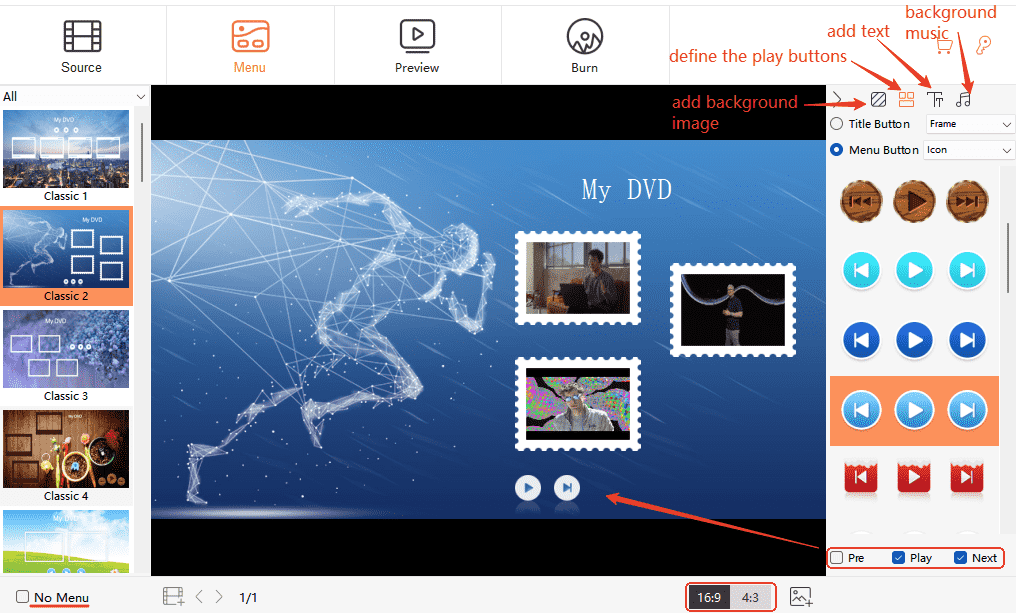
Move to the Menu tab, select a menu template according to your videos theme, such as birthday, travel, valentine’s day, the seasons... Then, customize the menu with buttons, texts, background music...
Step 6: Preview the results.
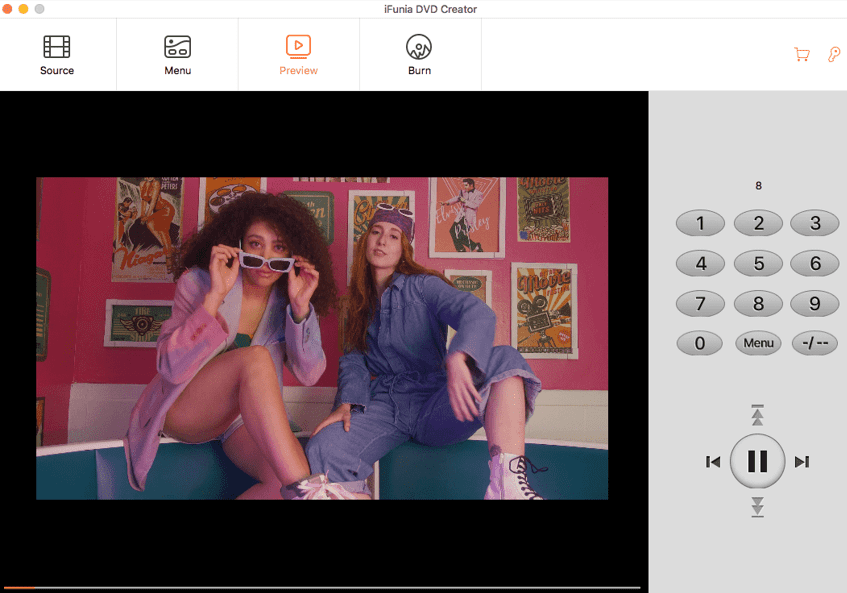
In this part, you are allowed to preview the DVD you made with the menu and editing before burning. If you are not satisfied about it, go back and modify in the previous parts. Plus, on the right panel, it’s a TV remote to choose the video you want to preview.
Step 7: Burn videos from phone to DVD
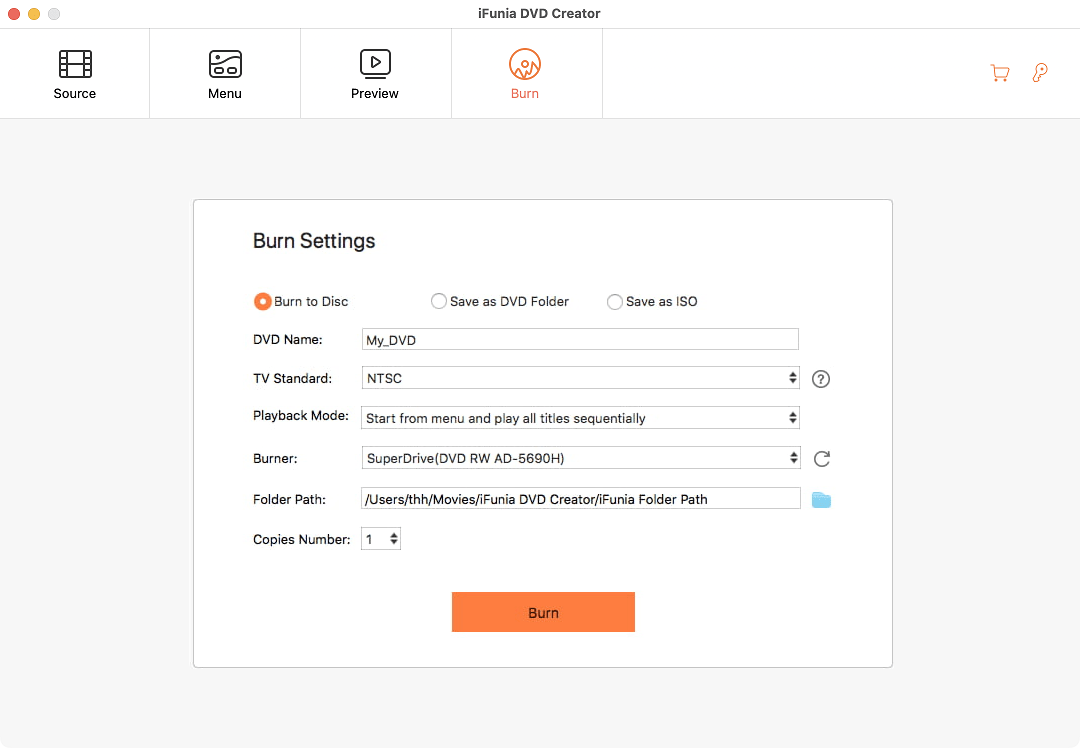
Choose Burn to Disc and set up the burning settings like the file name, TV standard, and a folder path. Finally, hit on the button Burn to start phone video to DVD burning.
#2. ConvertXtoDVD (only for Windows)
Price: $44.99 per year
Accepted video formats: MP4, MOV, MKV, M4V, FLV, , AVI, MPG, MPEG, VOB, etc.
How long you can get it: you’ll get your disc burned right away in a few clicks
ConvertXtoDVD is efficient DVD authoring software to convert and burn videos from Android/iPhone to a DVD playable on your DVD player. You can change subtitle, image and menu settings and preview the editing results before burning.
Detailed Steps: How to Put Phone Videos On a DVD
1. Prepare the phone videos and DVD like I presented above with iFunia.
2. Install the application and run it. Add the video files into the program.
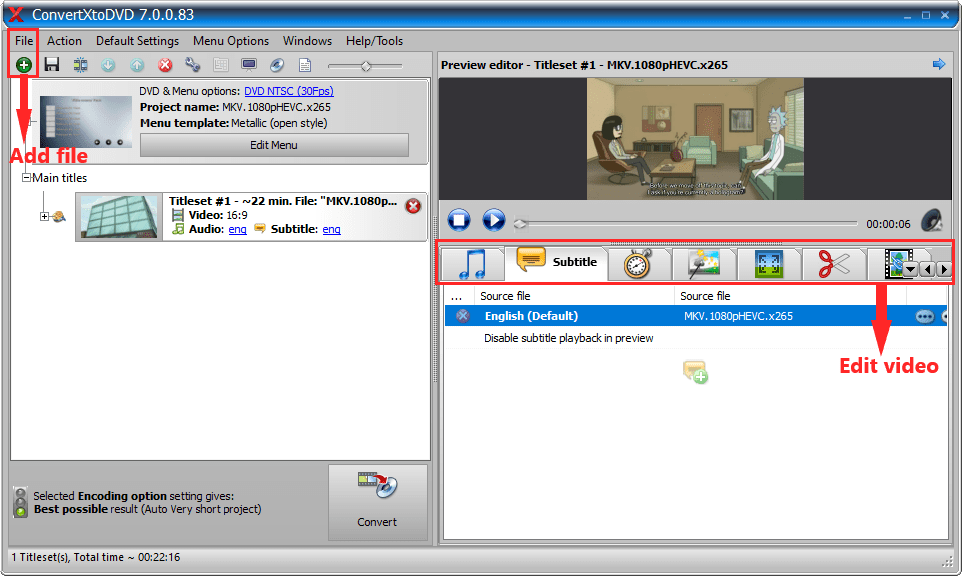
3. Edit the videos at right. You can cut the video length, brighten up the images, add subtitles and background music, etc.
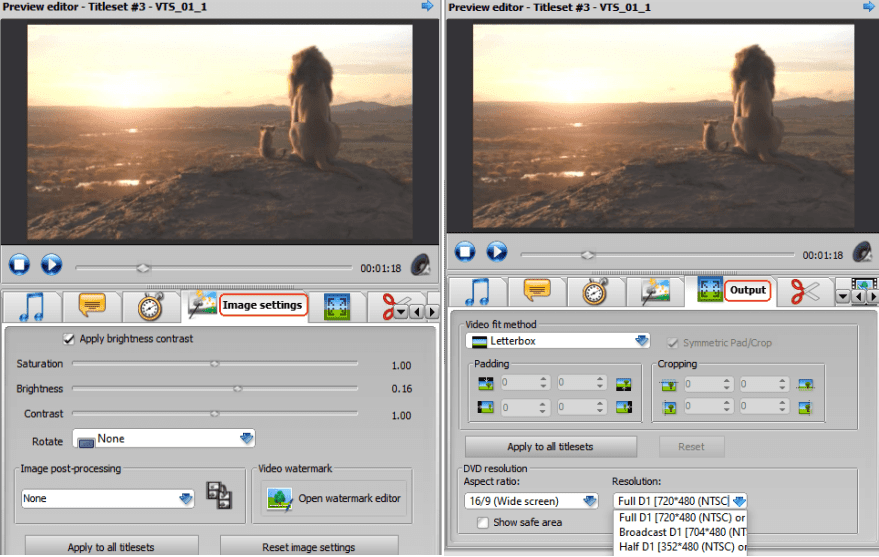
4. Choose a DVD menu among several theme options.
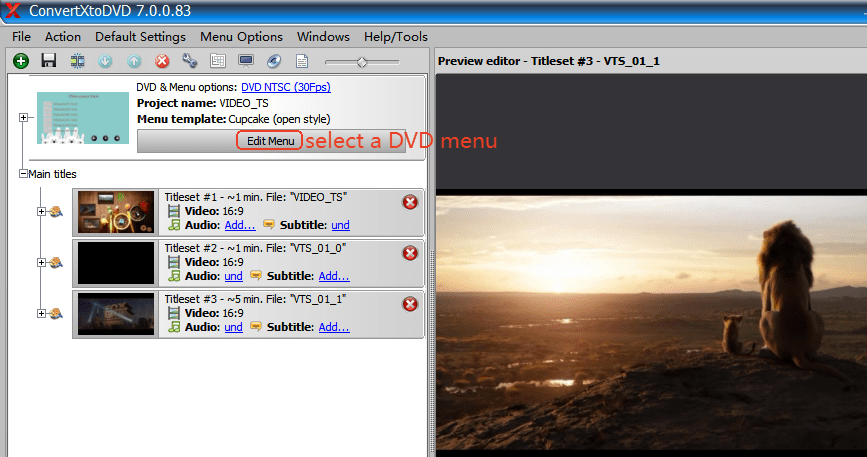
5. Preview the setting result and modify the details. Click Convert to upload videos from phone to DVD.
#3. Express Burn
Price: $60 to burn DVDs
Accepted video formats: MP4, MPEG, WMV, MOV, AVI, MPG, OGM and all video formats with a DirectShow based codec
How long you can get it: you’ll get your disc burned right away in a few clicks
Express Burn disc burning software can burn CD, DVD and Blu-Ray fast and easy. Like iFunia, it empowers to create DVD or ISO files with customization features.
Guide: How to Burn Videos From Phone to DVD
1. Prepare the phone videos and DVD like I presented above with iFunia.
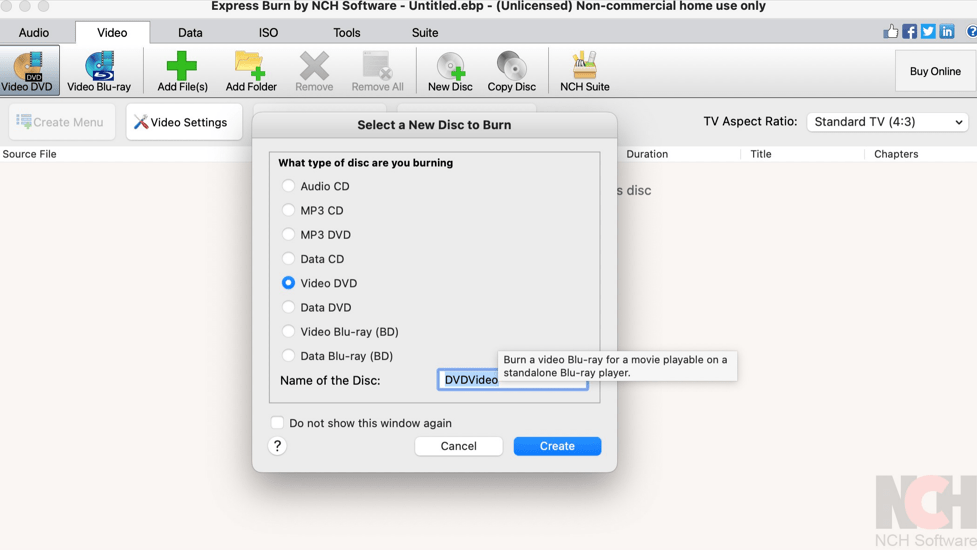
2. Launch Express Burn and choose Video DVD.
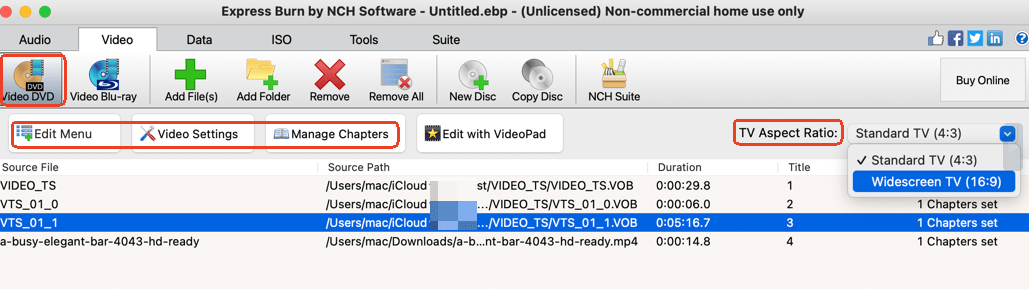
3. Click Add Files or drag the phone videos into the program. There are settings like menu editing, videos settings, chapters management, and TV aspect ratio.
4. Hit on Edit Menu → Check for New Template to specify a disc menu.
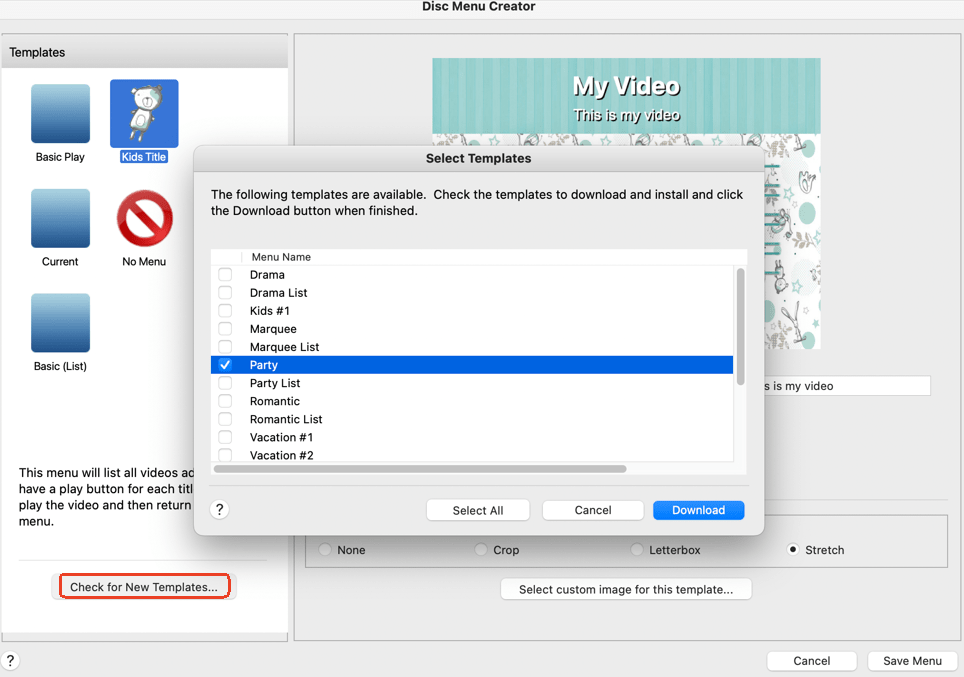
5. After setting up, click Burn Video DVD to convert cell phone video to DVD at once.
Related Questions About Phone Videos to DVD
Q1: How is the Burn Video App?
The application Burn Video offers DVD service by allowing you to upload videos and pictures from your phone to the app without going out. You can edit the videos and photos in the app as you want, and upload them. Then, they grab the media, burn the content onto a DVD, and free deliver the disc to your house.
However, it’s NOT recommended because:
- There is feedback like the app has been crashing, so you have to upload the videos in a few days, or simply fail to load the videos.
- They claim that the disc will be delivered free in a few days, some customers waited for more than 20 days.
- Lots of users said that they have unprofessional poor customer service as they always don’t response to your emails.
Q2: How to transfer YouTube videos to DVD?
You also want to know how to burn a video from YouTube to DVD? It is quite simple if you find the right DVD burner.
Q3: Can you convert MP4 to DVD?
Yes, to burn MP4 to DVD, there are 6 best ways.

Chloe LEE is good at explaining and solving complex technology problems to her readers. Since joining iFunia Studio, she has focused on writing articles about video and DVD software, and how-to tutorials.
Comments (0)
Leave a Reply