


How to Convert YouTube Videos to iTunes (and Apple Music) Safely




Are you looking for a reliable YouTube to iTunes or Apple Music converter that can turn your favorite YouTube songs or playlists to iTunes and sync them to your iPhone or listen offline? You are not alone.
In this guide, you’ll learn several safe ways to convert YouTube to iTunes‑compatible formats (like AAC, MP3 or M4A) on both Windows and Mac.
Note: Please only download YouTube videos you have the rights to, and respect YouTube’s Terms of Service and copyright laws in your country.
 iFunia YouTube Downloader
Download Videos from YouTube and 10000+ Websites
- Offer multiple download formats such as MP4, M4A, AAC, FLAC, MP3, etc.
- Download videos in 8K, 4K, UHD, 1080p Full-HD, and smaller resolutions.
- Download videos YouTube and over 10000 websites such as Facebook , Instagram, Vimeo, Twitter, etc.
- Download entire playlists and channels from YouTube in bulk, all at once.
- A clean and ad-free user interface that is easy to get around.
- No security issue: reliable and secure without malicious ads or information risk worries for your data or devices.
 Free Download Windows 10 or later
 Free Download macOS 10.13 or later
 iTunes Supported Audio Formats
- WAV
- AIFF
- Apple Lossless
- AAC
- MP3
Method 1 – Use a Desktop YouTube to iTunes Converter
#1 iFunia YouTube Downloader
iFunia YouTube Downloader allows you to download music from YouTube to iTunes compatible formats like AAC, M4A, MP3, etc. Besides YouTube, this app can download videos from 10000+ websites, including Twitter, Facebook, TikTok, Soundgasm, Spotify, etc.
What makes it stand out is that this is one of the very few apps that can batch download a whole YouTube playlist in high quality. In their own words, they just download YouTube videos in their original format and quality. You can customize the output folder, output file name, and output quality of your converted YouTube songs for more flexible management.
How to Convert YouTube to iTunes in 4 Simple Steps (2026)
Step 1 – Download and Install the Converter (Mac/Windows)
Free Download macOS 10.13 or later Free Download Windows 10 or later
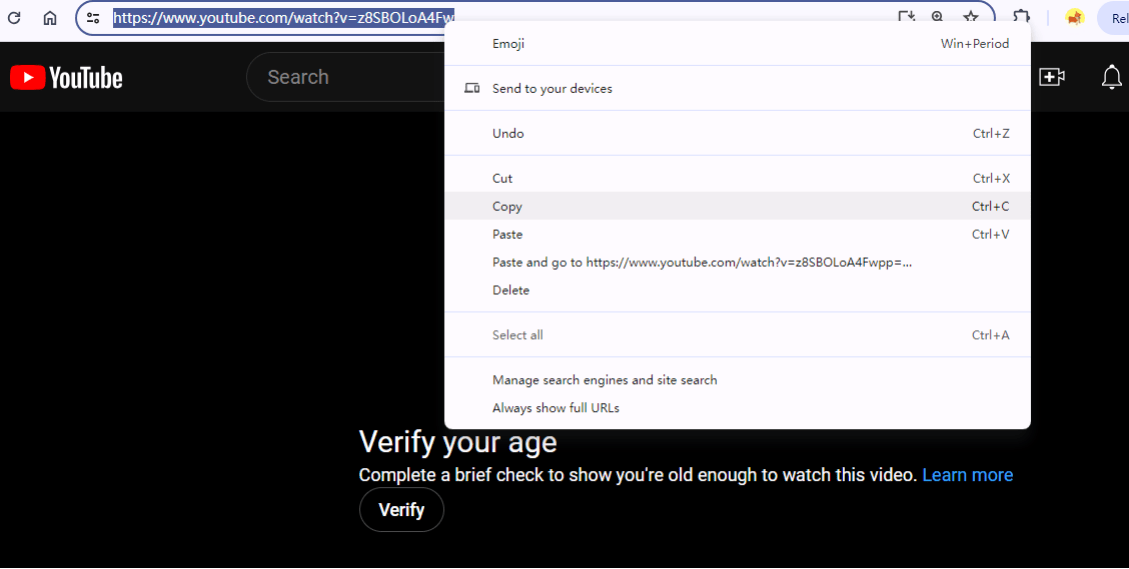
Step 2 – Copy the YouTube Video URL
Go to YouTube, find the video you want to download, and copy the link from the address bar.
Step 3 – Choose iTunes‑Compatible Output (MP3, M4A, AAC)
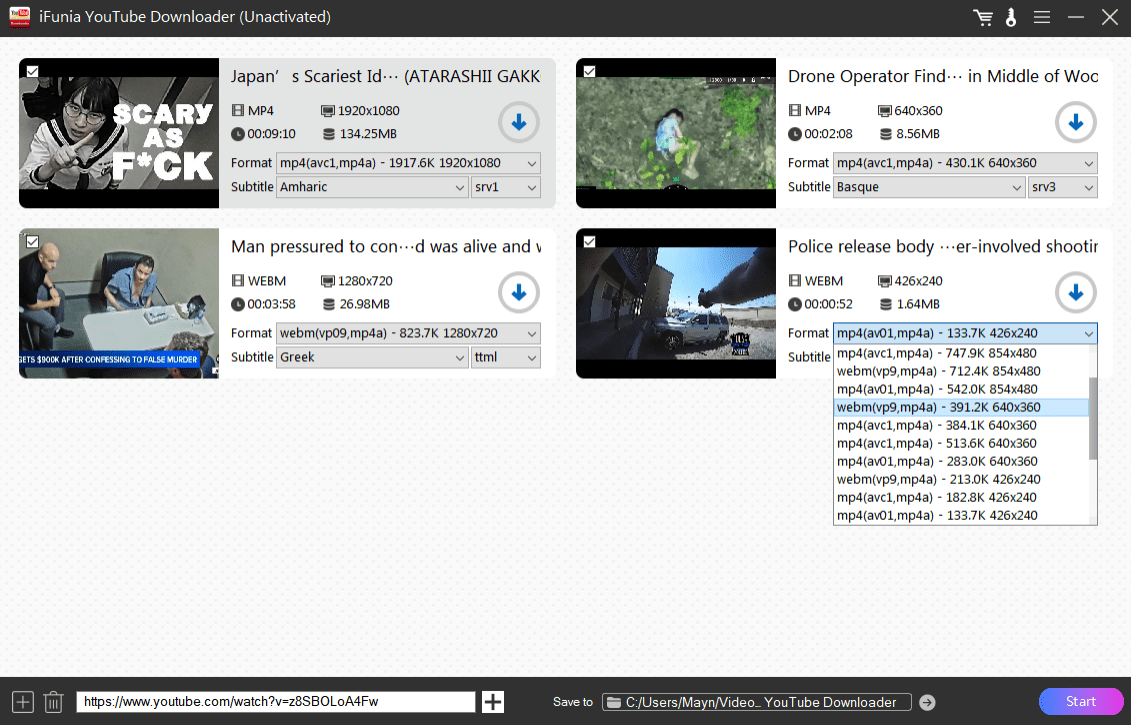
The program will automatically detect what’s been copied; you just need to click "+" to add the video to the program for analyzing. After that, the app will list the video you added with information like video name, size, available download format, quality, and subtitle. Select an iTunes-compatible output format from the format drop-down list, such as M4A (for higher quality, you can choose the highest bitrate) or AAC. Click "Start." It will start downloading the YouTube videos.
Step 4 – Import the Converted Music into iTunes / Apple Music
For macOS 10.15 and higher:
Since macOS 10.15 Catalina, Apple replaced the iTunes app with Apple Music. To import music to Apple Music, just follow the steps below:
- Open the Music app.
- Go to File > Import.
- The file should be added to the songs list, If you have a device connected, it will be automatically synced to your iOS device.
For Windows or macOS 10.14 and older:
- Open iTunes.
- Click the File option and select Add to Library from the drop-down menu.
- Find the downloaded YouTube files, and put them in iTunes.
Pros:
- Easily convert YouTube to iTunes
- Supported websites also include Dailymotion, Spotify, SoundCloud, and 1000+ more
- Download and convert with highest quality available
- Supports batch downloading and batch converting
- Fast download speed and conversion speed
Cons:
- Not a totally free service
#2 aTube Catcher
This software program can work as a YouTube to iTunes converter for Windows. This easy-to-use video downloader comes with a user-friendly interface where all the features are listed. It supports XP, Vista, Windows7, Windows 8 and Windows 10.
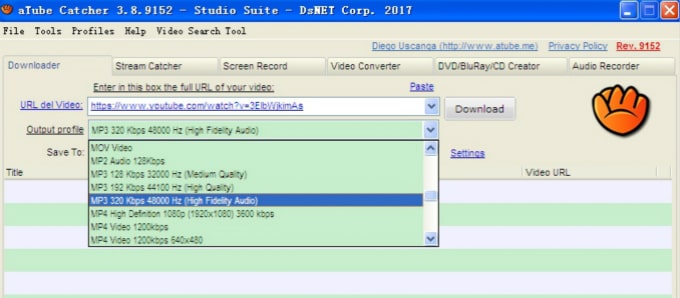
Step 1. Download aTube Catcher and install it on your PC. Open the software, and take a look at its interface. Find the URL in the video field.
Step 2. Copy and paste the YouTube video URL in the aforementioned URL field. Please note that this YouTube to iTunes converter only allows you to download one video at a time.
Step 3. Click the Output profile dropdown menu, and select the format you need. Click the Download button to begin the download of the video.
Pros:
- Convenient to use
- Download YouTube video to audio formats supported by iTunes
- Other features such creating DVD and converting videos
Cons:
- Download speed is not fast
Convert YouTube to MP3 Online, Then Add to iTunes
#3 mp3converter.net
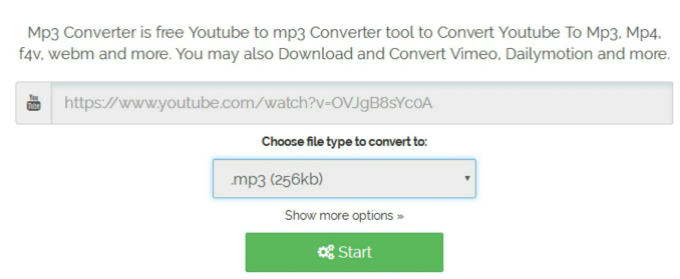
This free online YouTube to iTunes converter can extract audio from YouTube in MP3, AAC and other iTunes compatible formats. In addition to YouTube, it also supports a few other websites that provide video and music content.
Pros:
- Convert YouTube video to iTunes online
- Apart from YouTube, it also supports Facebook, Vimeo, AOL, etc.
- Provide step-by-step instructions on how it works
Cons:
- Limited supported websites and output formats, but is enough to work as a YouTube to iTunes online converter
#4 flvto.biz
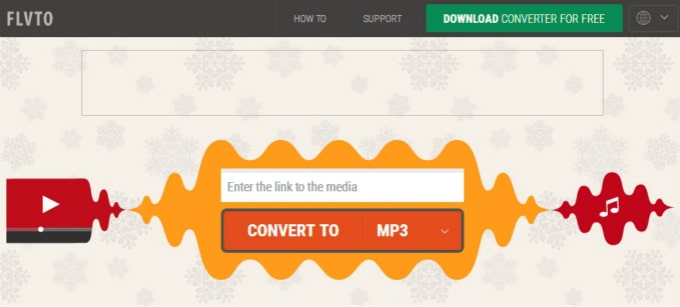
This online tool can work as a decent free YouTube to iTunes converter. It's easy to use. Supported output formats include MP3, MP4, AVI, AVI HD, and MP4 HD. There is also a desktop version of this tool, allowing users to convert YouTube to WAV, AAC, MOV, WMV and WMA.
Pros:
- Easily convert YouTube video to iTunes compatible formats
-
Browser extension available
Cons:
- MP3 is the only output audio format available
#5 converto.io
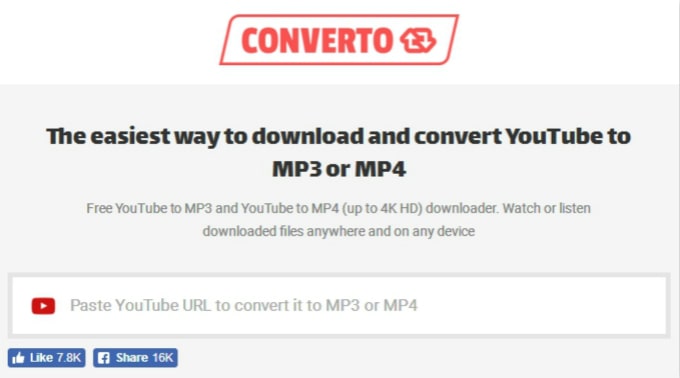
This is a free online service that can download YouTube video in either MP3 or MP4. This tool allows you to edit file name before downloading. In addition, by clicking the Setting button, you can select the part of video you need and remove the unwanted part.
Pros:
- Convert YouTube iTunes without installing any software
- Basic editing feature such as cutting
- Step-by-step instructions available on how to use this tool
Cons:
- MP3 is the only available output audio format
Quick Answers to Common Questions
- Can You Add YouTube Music to iTunes or Apple Music?
Yes, you can. Just make sure to download the YouTube video in iTunes‑compatible audio formats like MP3, M4A, AAC, etc. - Is converting YouTube to iTunes legal?
YouTube’s Terms of Service disallow downloading videos you don't own or without permission. This article is for informational purposes only; always follow your local laws. - Do I need to install sketchy software?
Nope. We’ll show you safe, trusted tools or online sites that require no installation. - Can I convert whole playlists in one go?
Yes, there are tool on our list that can download a whole playlist or channel in one go. You just need to add the URL of the YouTube playlist. - How long does it take?
Less than 2 minutes per video — even for beginners. - What Format Does iTunes/Apple Music Support?
AAC, MP3, ALAC, AIFF, and WAV

Chloe LEE is good at explaining and solving complex technology problems to her readers. Since joining iFunia Studio, she has focused on writing articles about video and DVD software, and how-to tutorials.
Comments (0)
Leave a Reply