


Convert MP4 to H264 with 4 Best Free Video Converters




MP4 VS H264, What are the Differences?
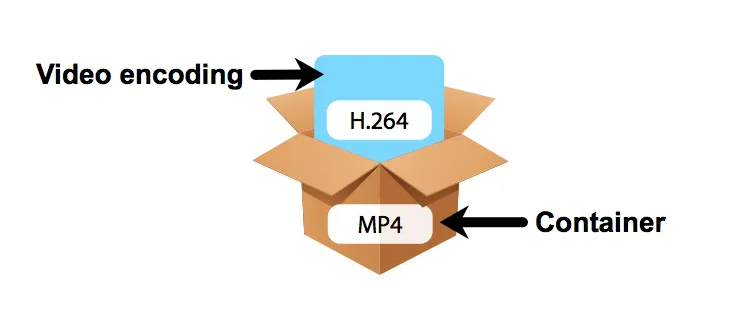
First of all, you have to figure out that they are two different concepts, MP4 is a video container format, and H264 is a video codec format.
Still no clue? No worries! Take the video file as a chocolate box, the ingredients like cocoa beans are the video and audio streams, which are encoded by codecs like H.264 to chocolates. Then, they are packed with the chocolate box, which is the container MP4.
What Video Format is H264?
H264 is the video compression codec inside and it has a container to pack it. Hence the container format can be various, such as MP4, MOV, 3GP, MKV, TS, WebM, etc.
Are All MP4 Files H264?
No. Like I explained, MP4 is the container format that packs the videos in codec format. So, it can be different codecs inside, including H.264, H.265 (HEVC), VP9, AV1, etc.
How Can I Tell the Codec of My MP4 Video?
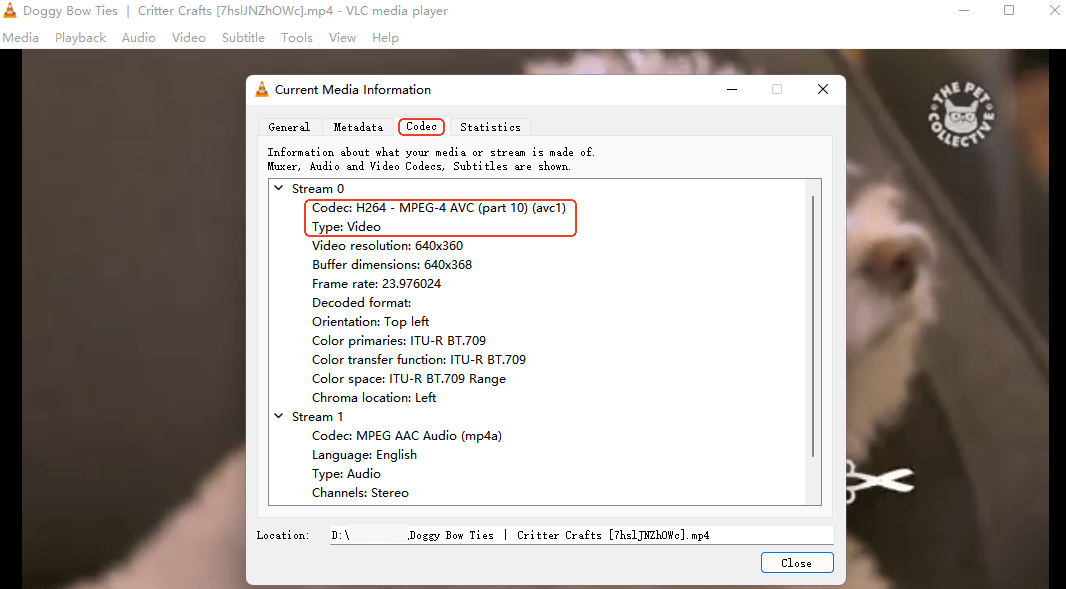
It can be found out by looking at the file property information. For example, in VLC, head to Tools → Media Information → Codec, and it will display the video codecs. So, you can tell what codec the MP4 video is encoded, and if you want to convert it to codec H.264.
 iFunia Video Converter
Convert MP4 to H264 Easily and Quickly
- Work with 600+ input/output codecs. Including H.264, H.265, VP8, VP9, AV1, etc.
- Convert between 400+ formats. Convert video from/to almost all video formats including MP4, MPEG, FLV, AVI, MKV, MOV ...
- Batch conversion. You can add as many video files as you want and convert them all at once efficiently.
- Fast conversion speed. Faster than most other converters with latest hardware acceleration technologies such as Multi-core CPU, NVIDIA CUDA, etc.
- Conserve original quality. It keeps high lossless video definition during the conversion, plus, you can set up the resolution, frame rate, and audio quality.
- Can compress videos. Compress MP4, MOV, MKV, HD, 4K, 8K... video file size up to 90% without visible quality loss.
- Video edit tools. It allows you to trim, crop, rotate, add subtitles and special effects to your videos.
 Free Download macOS 10.13 or later
  Free Download Windows 10 or later
How Do I Convert MP4 to H264?
In this post, discover with me several working and efficient MP4 to H264 converters. I’ll describe the converters’ features, and then explain the tutorials on how to convert MP4 to H264 with detailed pictures. I hope that will help you solve your problem.
#1 Best MP4 to H264 Converter - iFunia Video Converter
iFunia is my go-to site for any multi-media problems. Their free video converter is a powerful software with 3 practical built-in tools, video converter, compressor, and editor.
Imagine that you can handle with all video issues in the same application at the same time instead of switching between 3 software. Isn’t that awesome?
Tutorial on MP4 to H264 conversion with iFunia:
- Free download iFunia Video Converter on Mac or Windows.
Free Download macOS 10.13 or later Free Download Windows 10 or later - Head to the first tool Video Converter. Click the ➕ icon at the left below corner to add your MP4 files, or simply drag and drop the files into the program.
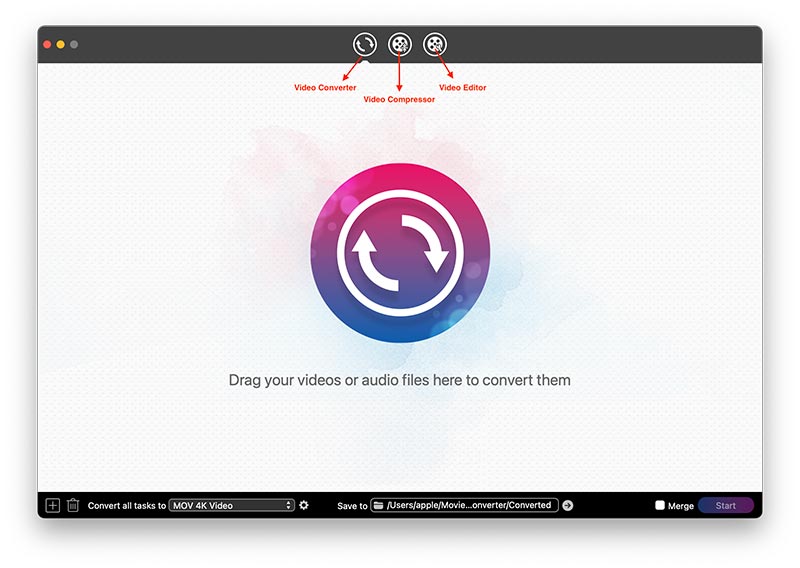
- By hitting on the format icon, you can choose among 400+ output formats with a proper resolution.
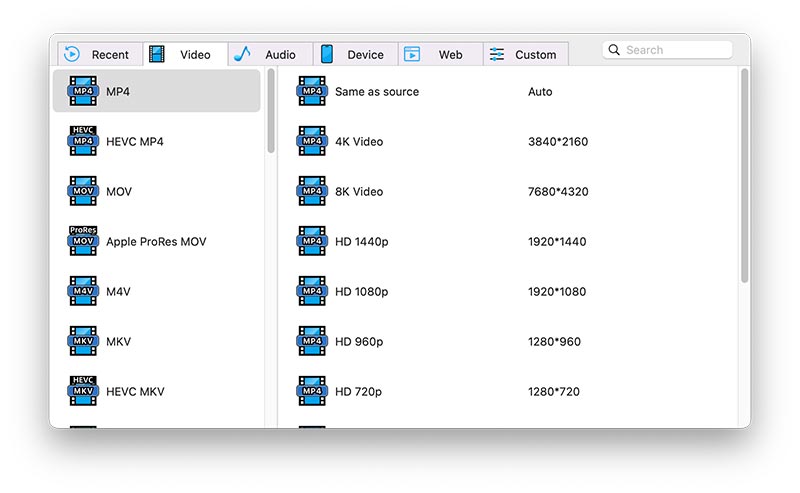
- Click the Settings gear icon to define the video and audio codecs, resolutions, and qualities.
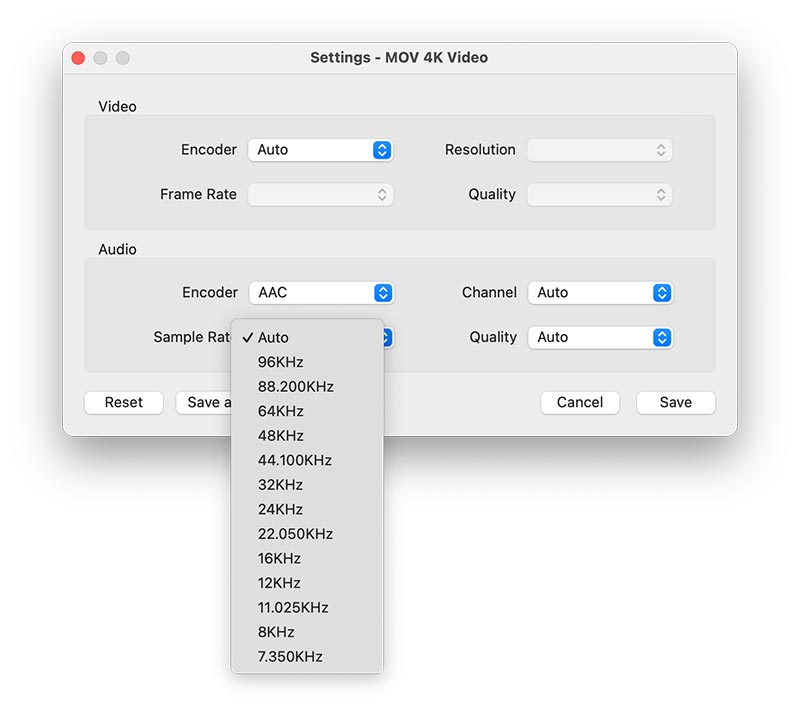
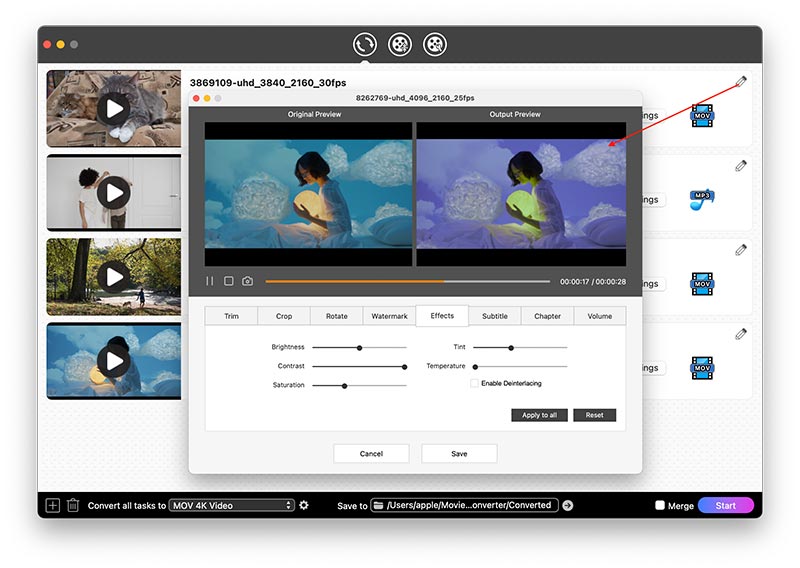
- You can edit the video if you need by pressing the pencil icon. You’ll find plenty of editing options like trim, crop, rotate, adding watermark and effect, etc.
- Finally, choose an output path, and click Start to convert mp4 to h264 codec.
#2 FFmpeg Convert MP4 to H264
FFmpeg is free command-line software that can solve various multimedia issues, such as format conversion, video editing and scaling. You just input the command lines and the program processes the demand directly.
However, FFmpeg has limitations that scare users away. Especially with its complicated command-line interface, it’s difficult to understand how to use the program. Plus, you have to learn the exact lines so that the software can get the message and do the job, if not, it just shows error notifications.
Step-by-Step Guide on FFmpeg MP4 to H264:
- Get FFmpeg installed on your PC.
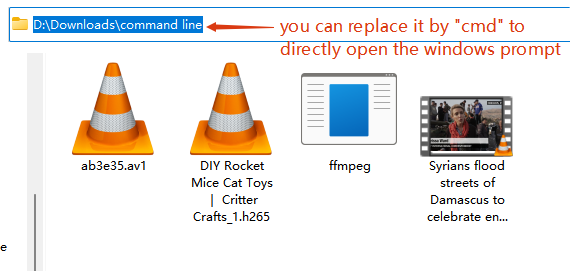
- Put the MP4 files you want to convert to H.264 and the ffmpeg extension in the same file. And open the Windows Prompt on Windows, or Terminal on Mac.
![ffmpeg convert mp4 to h264]()
- Once it’s opened, type the following line:
ffmpeg -i "the video name.mp4" -c:v libx264 "the video name.mp4"![ffmpeg mp4 to h264]()
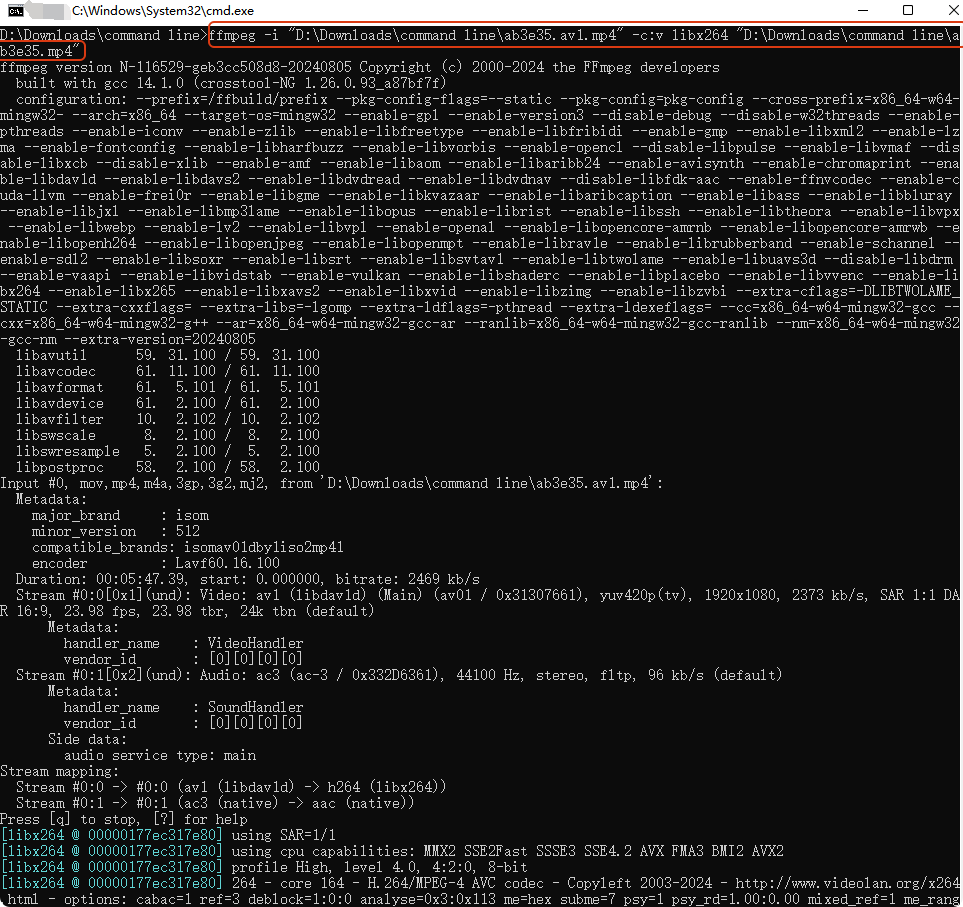
Tips:
You can simply drag the file into the program, so it will directly show the video name instead of typing it;
You can convert the MP4 file to other format encoded in H.264 like:
ffmpeg -i "the video name.mp4" -c:v libx264 "the video name.mov"
#3 Convert MP4 to H264 with VLC Media Player
VLC is familiar to those who use it as a free media player to play any kind of video and audio files, as well as network streams. Well, it can also be used as a free video/audio converter, burner, and editor. What’s more, it’s available not only on Mac and Windows, but also on Android and iOS.
Nevertheless, its drawbacks are obvious. The videos converted may be incomplete and some of the videos may lose sound. So, save the original videos before checking the video’s integrity.
Convert MP4 to MP4 H264 via VLC:
- Download and install VLC.
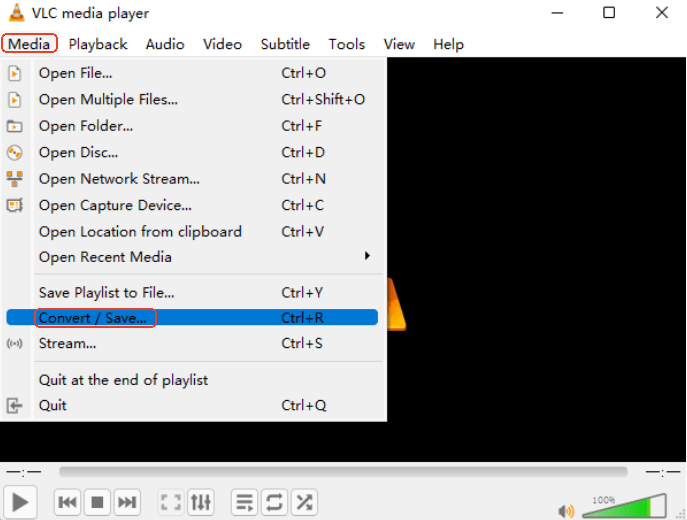
- Head to the upper menu, choose Media → Convert/Save.
![convert mp4 to h264 vlc]()
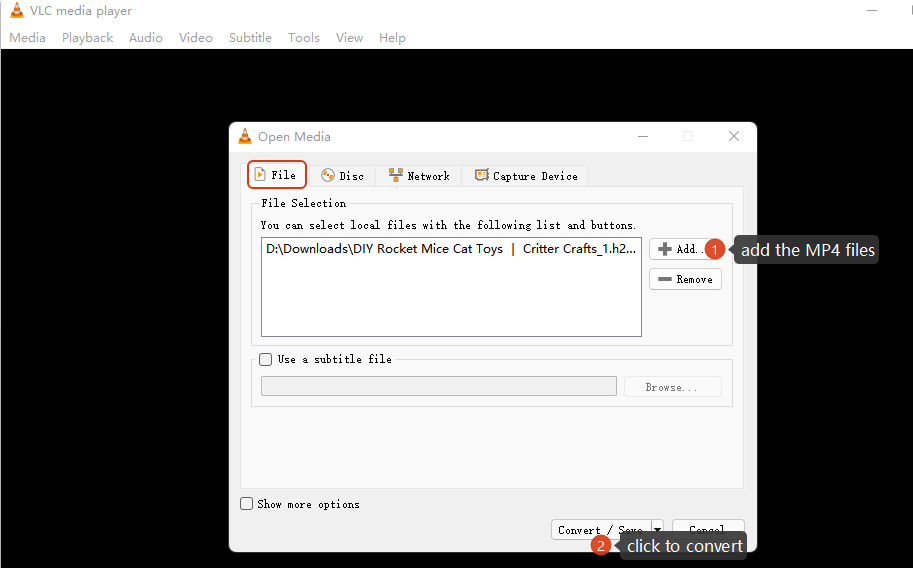
- Under the File tab, add the files and hit on Convert/Save button.
![convert mp4 to h264 free]()
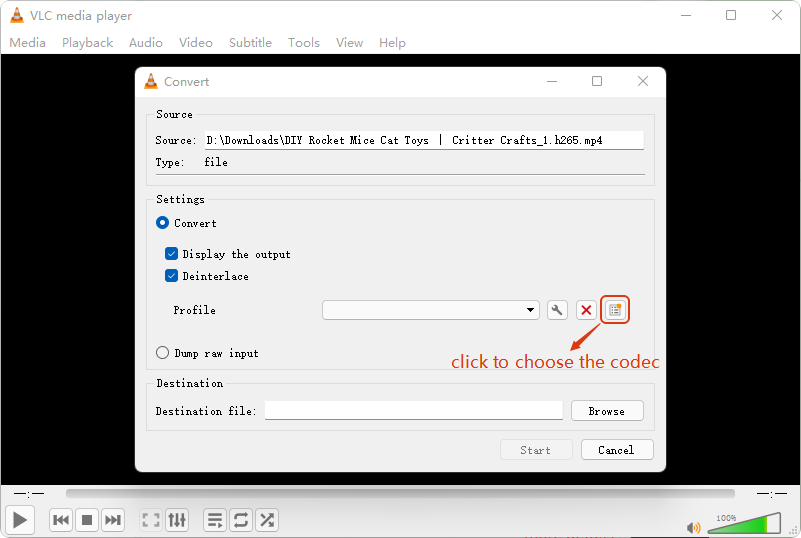
- Select Convert and check the boxes of Display the output and Deinterlace (it helps improve the video quality) if you like. In the Destination part, choose a path. Then, click the settings button to choose the output codec.
![convert mp4 to h264 free vlc]()
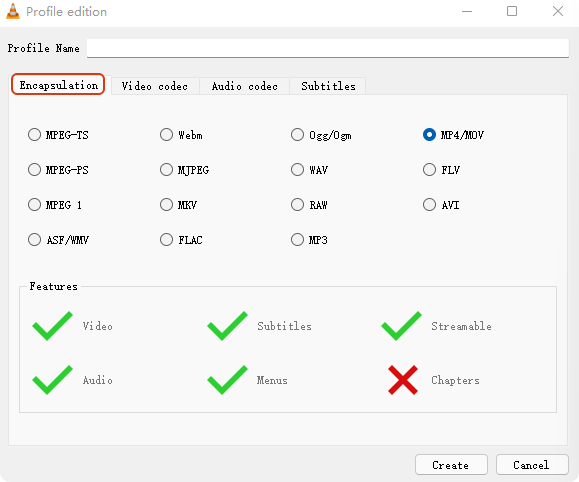
- Choose an output format under the tab Encapsulation.
![convert mp4 to h264 mac]()
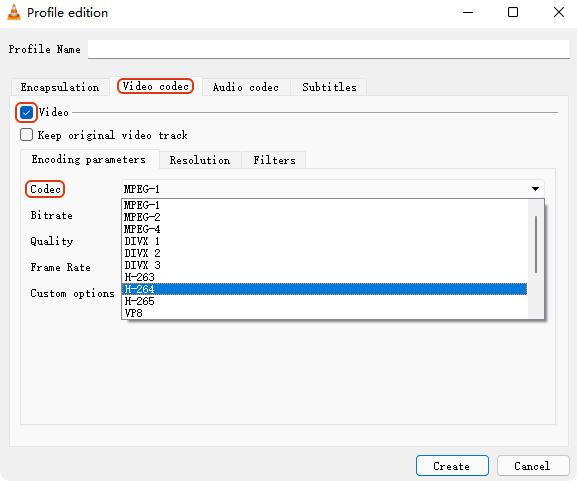
- Move to the Video codec tab. Define a name for the profile, check the Video option and choose h.264 as the output codec. Adjust other settings if necessary.
![convert mp4 to h264]()
- Click Start, and wait for a second, you’ll find it in the path folder you chose. If you find it incomplete, I recommend using the first converter.
#4 Convert MP4 to H264 Online
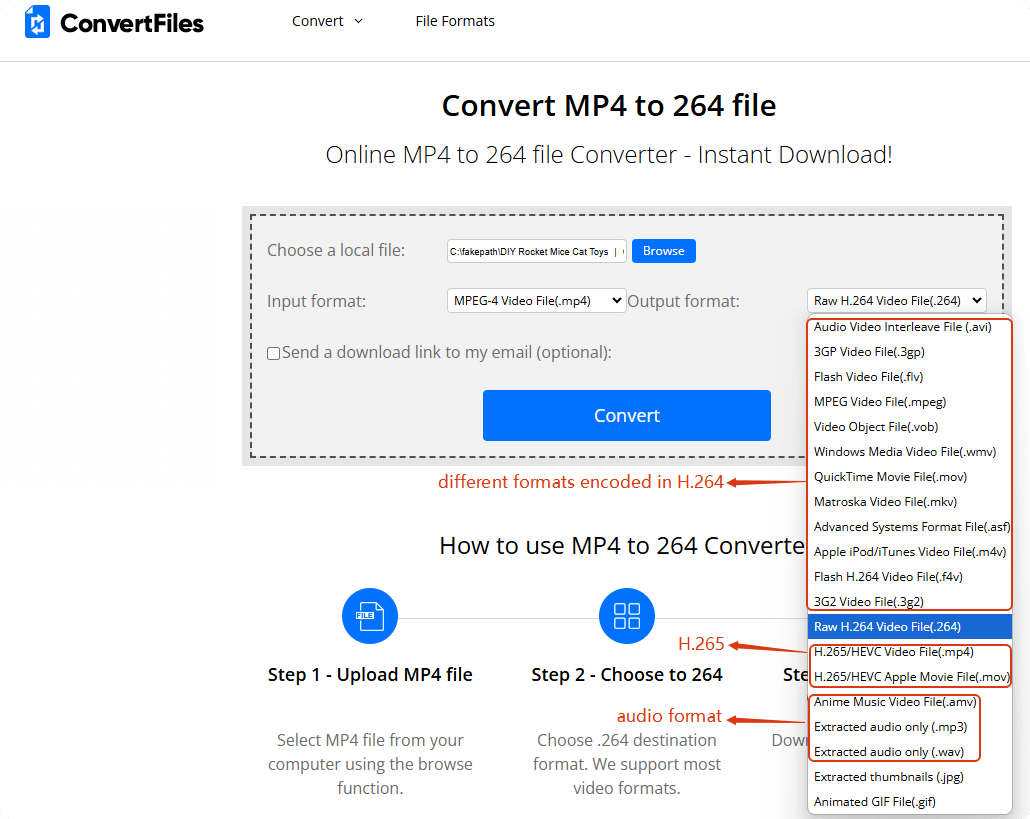
Online converters is an ideal option thanks to their conveniency and no installation of any software. I discovered a good MP4 to H264 converter online - ConvertFiles that can convert MP4 to raw H264 and H.264 in other formats, such as 3GP, FLV, MOV, MKV.
But you should not ignore its disadvantages. Firstly, it cannot convert MP4 to H264 in MP4 format. Secondly, it’s relatively slow compared to desktop software. Thirdly, it has limits on the file size (less than 250 MB). Fourthly, it’s not safe as it may come from untrusted sources with spyware, adware, or other malicious security risks to your files and device. So, it is not reliable to download files from servers online.
Detailed guide using MP4 to H264 online converter:
- Navigate to the online tool site ConvertFiles.
- Upload your MP4 files into the server by clicking on the Browse button. It will automatically detect the input format.
![mp4 to h264 converter online]()
- Choose the output format as raw H.264 or other formats encoded in h.264.
- Hit on Convert, and you’ll find the file converted in a few minutes.
FAQ
Why Still Use H.264?
H264 is still the most used and common codec nowadays, why? Because of its:
- High Quality. It compresses videos and maintain a high-quality image at low bandwidth connections.
- Wide Adaptability. It’s flexible and has been popular for a long time, making it compatible with most devices, browsers, and systems.
- High Processing Efficiency. Compared to H.263, it saves 50%+ bit rates; compared to newer codecs like H.265, it requires less processing power to encode and decode.
How to Convert MP4 to H264 on Mobile Phones?
The most recommended way is to use a professional video converter on computer and then transfer them to Android or iPhone, since it’s easier to operate and manage files on PC.
In addition, you can try VLC and online converters as I presented above on your mobile phone.
How to Convert H264 to MP4?
If you’re also looking for how to convert H264 to MP4 format, check it here for some powerful methods that I tested and verified.

Chloe LEE is good at explaining and solving complex technology problems to her readers. Since joining iFunia Studio, she has focused on writing articles about video and DVD software, and how-to tutorials.
Comments (0)
Leave a Reply