


[2026] 6 Best Ways to Download YouTube Live Streams (Finished & Ongoing)




YouTube Live videos can’t be downloaded while they’re still live, and others may disappear the moment the broadcast ends, leaving you with no way to see or save the videos.
But downloading YouTube live stream isn’t as straightforward as downloading online videos, In fact, whether you can download a YouTube livestream depends on several factors:
- Whether the stream has ended
- A way that can download YouTube livestream videos while it’s still live
- Whether the video is still available after the broadcast
- A downloader that supports long livestreams (3–10 hours) — most online tools break or download in fragmented .ts videos.
In this article, I’ll introduce to you 6 tested and useful ways to download live YouTube streams with detailed steps and pictures. Here’s the summary:
- Way 1: Best Professional Live Stream Downloader iFunia
- Way 2: Record YouTube Live Stream with Freeware OBS
- Way 3: YouTube Live Stream Download by Command Line Ytarchive
- Way 4: Download YouTube Live Stream with Online Service
- Way 5: Application to Download Live YouTube Stream on Android
- Way 6: How to download my own live stream from YouTube?
- Comparison of 6 ways
- FAQ
- Q1: Is There A Browser Extension to Download YouTube Live Stream?
- Q2: What Screen Recording Program Do You recommend?
- Q3: How to Save the Live Streams to Other Formats like MP4?
- Q4: How to Live Stream On YouTube as A Creator?
Can You Download a YouTube Live Stream While It's Still Live?
- Yes, it's possible — but only with desktop software (not online tools)
- The limitation — most online download sites only work after the live stream ends and YouTube finishes processing the video.
- Your solution — If you want to capture a live stream in real time while it's still broadcasting, you need a screen recording tool like OBS Studio. It records the stream as it plays, so you won't lose any content if the streamer deletes the video afterward.
Download YouTube Live Video with a YouTube Livestream Downloader (Best for PC/Mac)
iFunia YouTube Downloader is one of the best professional YouTube downloaders on the market. But what makes it better than other live stream downloaders?
 iFunia YouTube Downloader
What makes iFunia in a dominant position?
- Download YouTube Live Stream: it can download a live stream that’s already in progress from the beginning to the end and without a time limit. Plus, not as recording the screen, it downloads in the background and you can use your computer at the same time.
- Download Videos From Almost Any Site: it downloads YouTube videos, playlists, and channels without limit, besides, it also saves videos from other big streaming platforms like Twitter, FaceBook, TikTok, Dailymotion, Reddit, SoundCloud, etc.
- Save Videos With Quality: it empowers you to get the original quality without re-encoding with a list of output resolution options. Usually, the video quality can reach up to 1280×720 (HD), 1920×1080 (FHD), 4K UHD, and even 8K UHD. It depends on the quality of the original video.
- Fast Downloading Speed: as desktop software, it won’t be influenced by the internet condition, and with the advanced technologies, the program is faster than others.
- Batch Processing: it enables you to copy and paste no matter how many URLs and deal with all the videos simultaneously.
- Easy to Use: with a simple interface and efficient buttons, you can get your videos in a few clicks.
 Free Download macOS 10.13 or later
  Free Download Windows 10 or later
How to download a YouTube live stream with iFunia?
1. First of all, free download the application and open it.
2. Go to YouTube and copy the link address of the live video.
3. Paste the URL into the box below and click the “+” on the right or press Enter on the Keyboard.
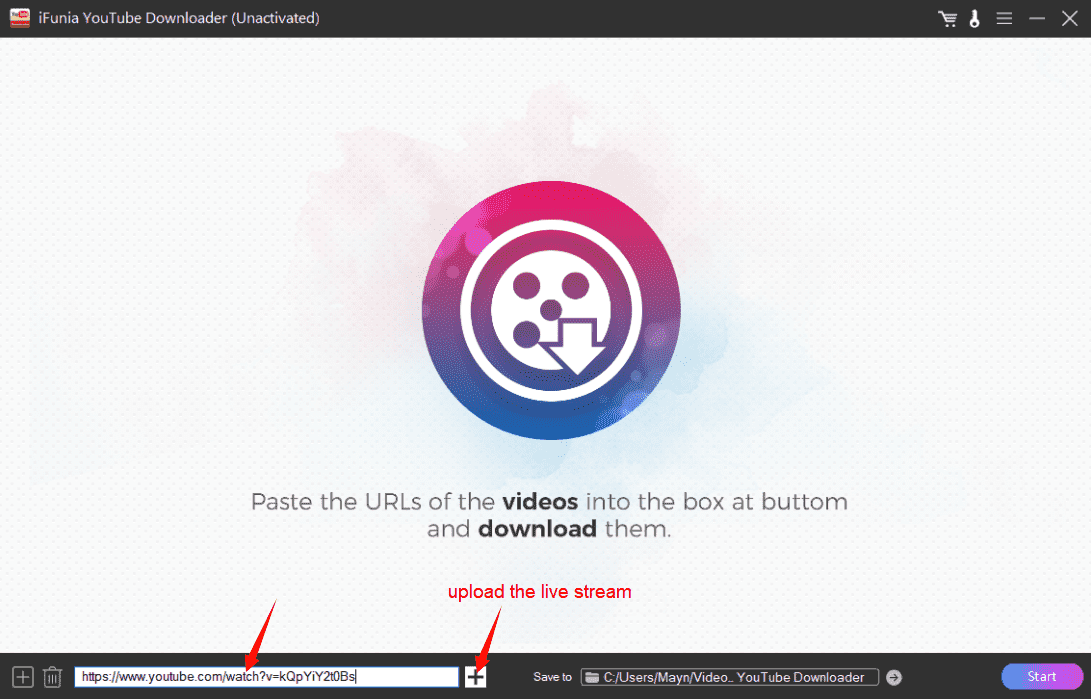
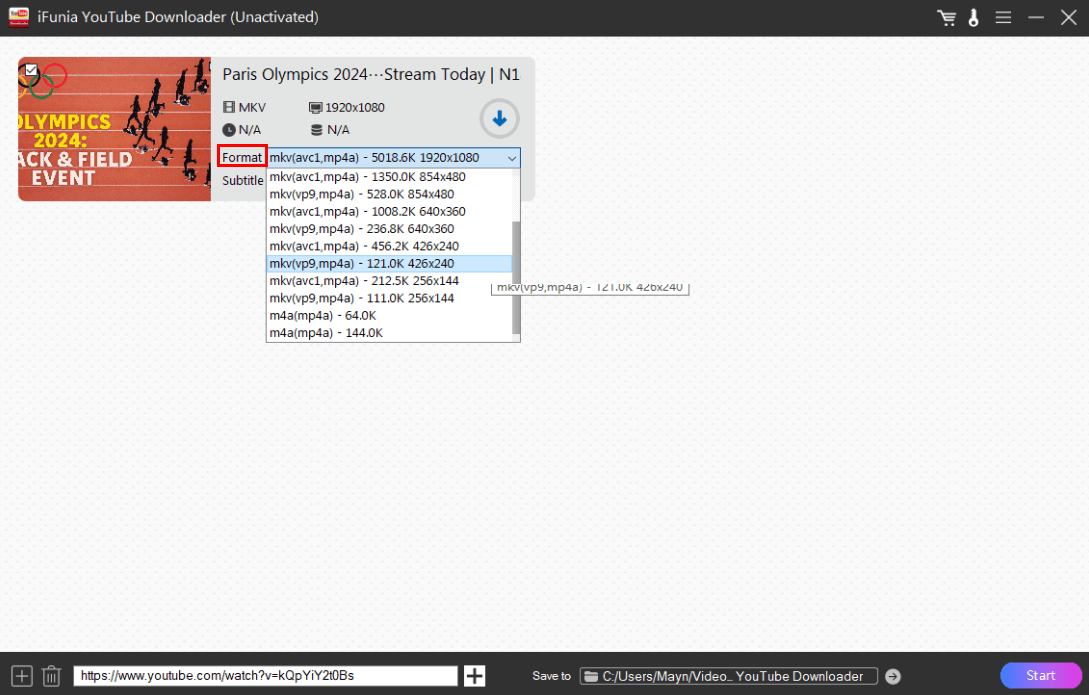
4. After a few seconds, the live stream is uploaded. In the format part, choose a resolution you want. The principle is that the bigger the resolution, the higher the image and audio quality, meanwhile, it brings a bigger file size and a longer time to wait.
Tips: as you may notice, the major output format here is mkv (a free container video format that allows to save unlimited videos, audio, and images in a single file);
You can choose between avc1 (referred to as H.264) and vp9 (recommended, as it enables higher video quality at lower bit rates than H.264);
By the way, an m4a file is an audio file saved in MPEG-4 format. If you choose this one, it will be only sound.
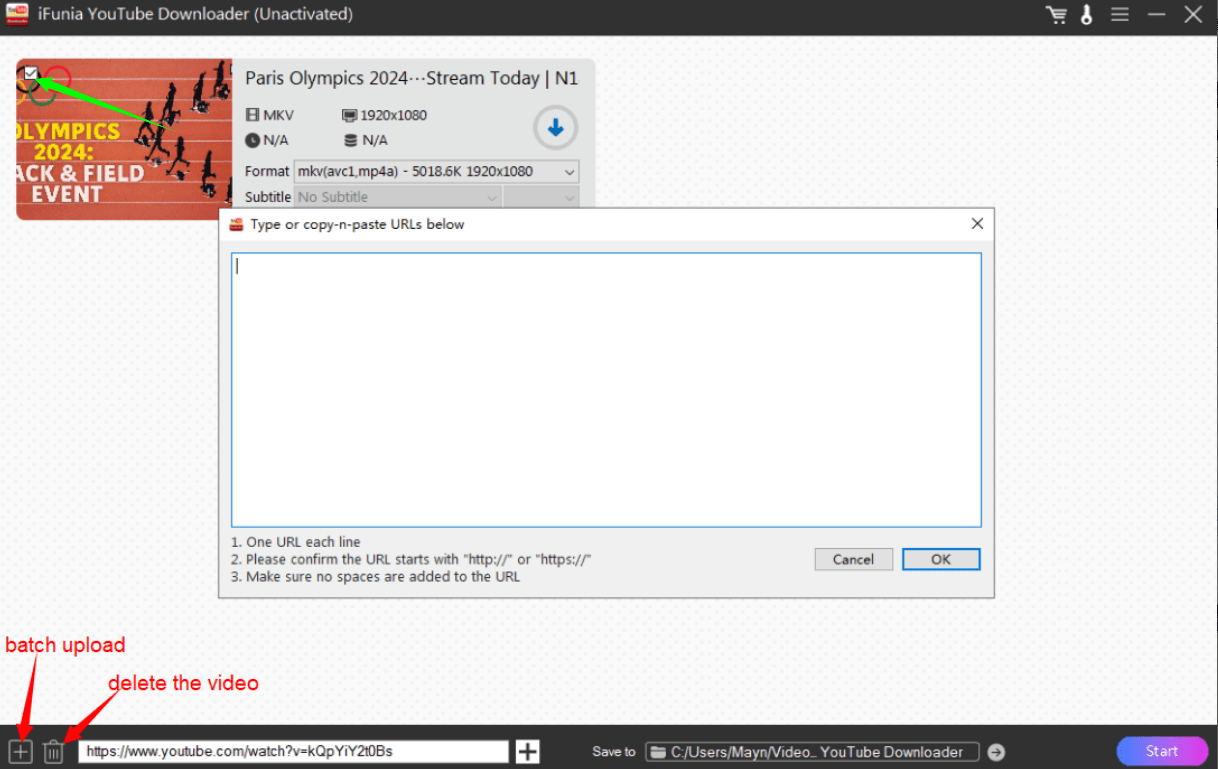
5. If you want to batch upload live streams, click the “+” at the left corner and paste the URLs as it suggests. If you want to delete one video already uploaded, uncheck the other videos and click the delete icon.
6. Once everything is prepared, choose an output folder and hit Start.
Way 2: Record YouTube Live Stream with Freeware OBS
OBS Studio (Open Broadcaster Software) is an open-source software for recording videos, including live streams. It is available on Windows, Mac, and Linux.
Cons:
- However, it is a bit complicated to use for new users.
- As a video recorder, you cannot use the computer when it records the screen.
- In addition, the quality is not as good as a video downloader.
Step-by-step guide on recording a live video with OBS:
- Download and install the software.
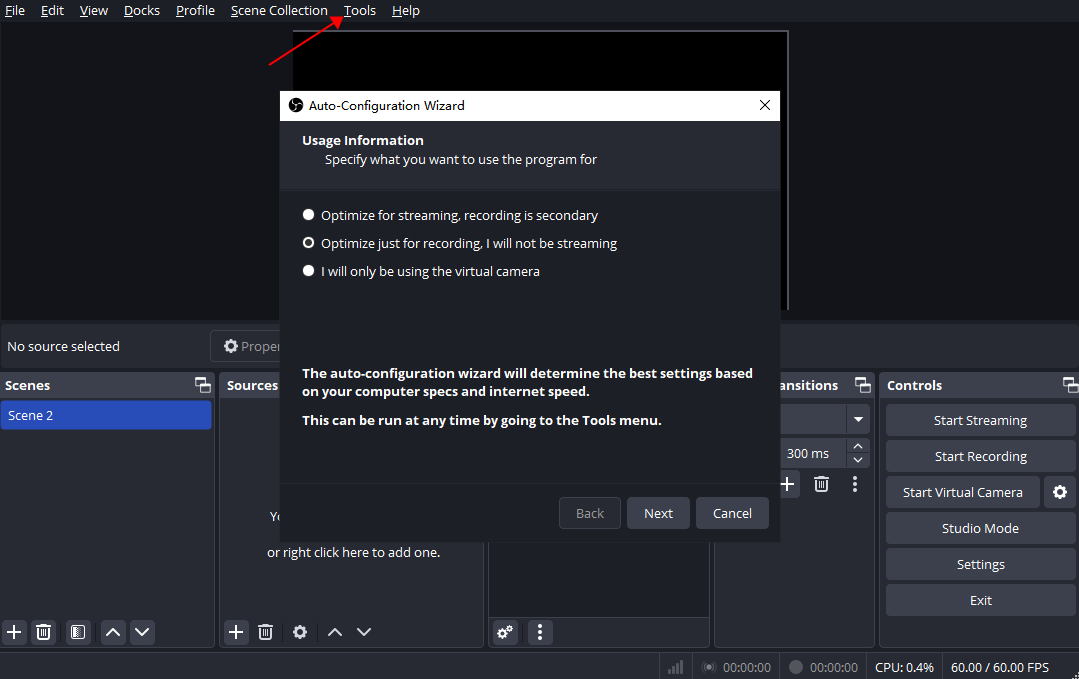
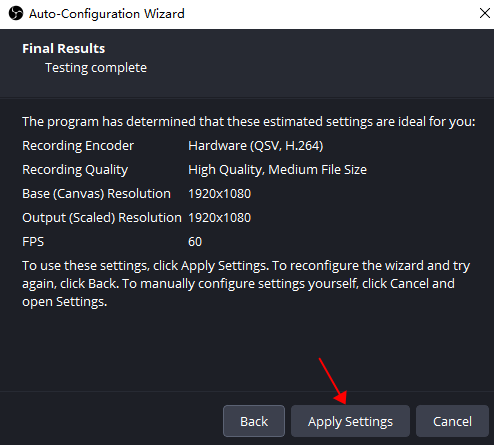
- The first time you launch the program, it asks you to set the Auto-Configuration Wizard. Normally, this tool tests your device and applies an optimal mode for your tasks. So, choose the configuration according to your needs and apply the settings. If you want to modify them, head to Tools to activate it again.
![download live youtube stream free]()
![download youtube live stream free obs]()
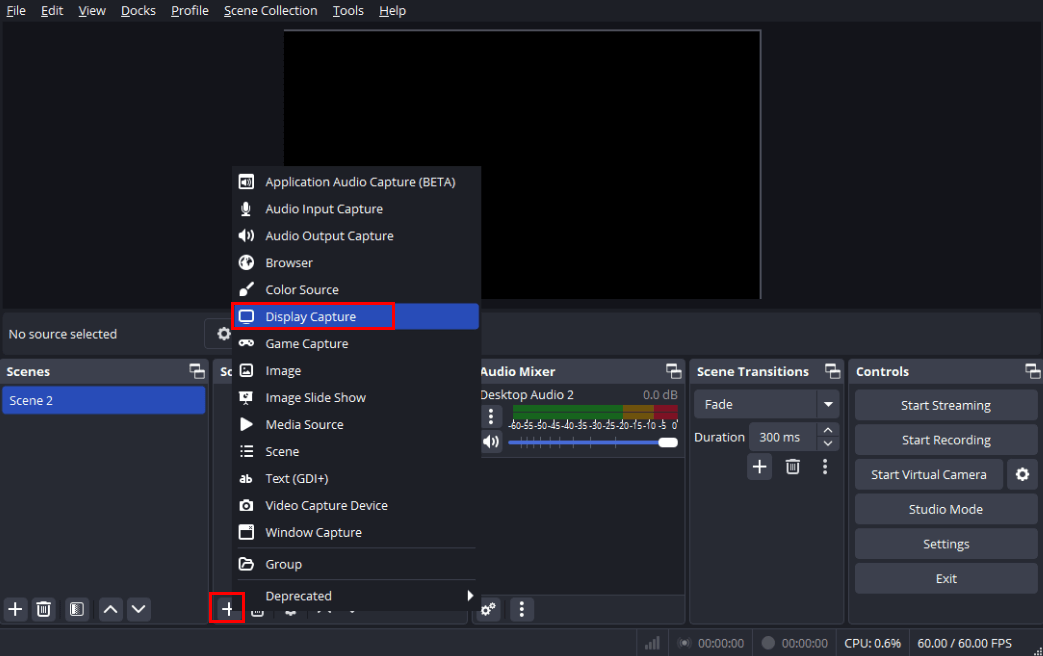
- In the sources dock, click the “+” below and choose Display Capture.
![download live stream youtube free obs]()
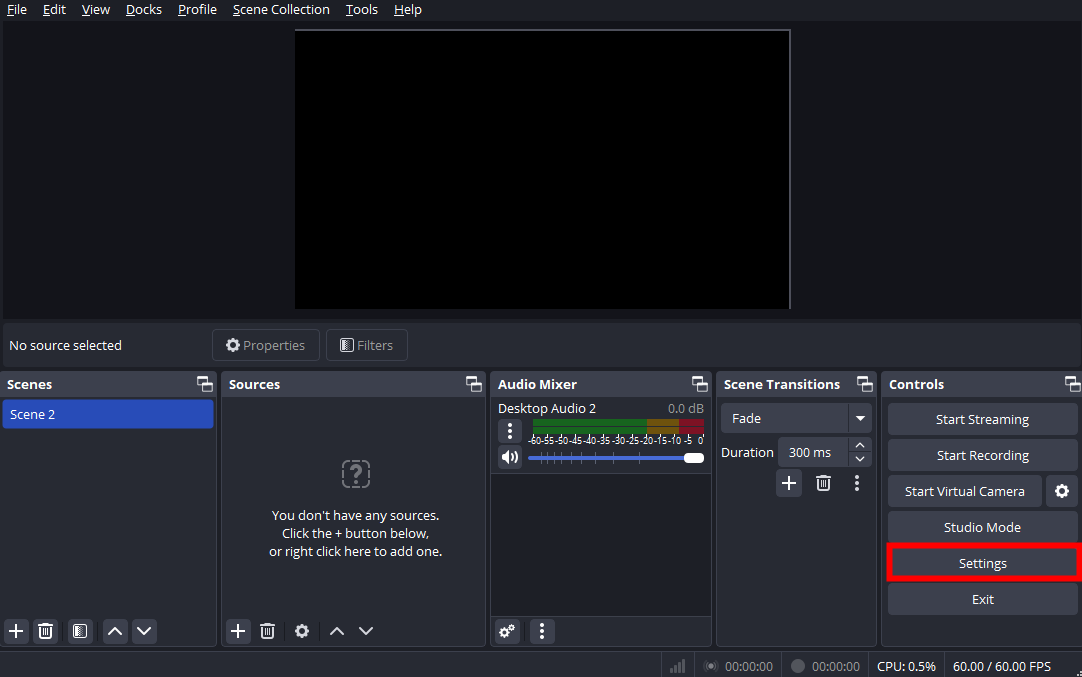
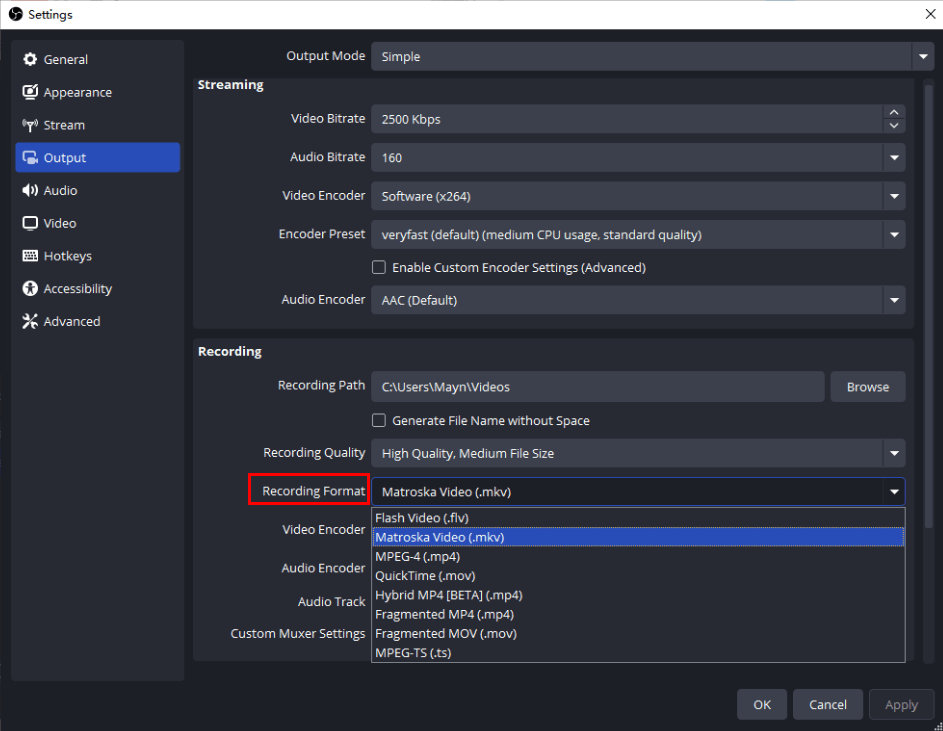
- Then go to the Settings to choose an output format.
![live stream youtube download free obs]()
- In the Output option, head to the Recording part and choose a Recording Path and Recording Format. Click OK. You can also navigate and define other configurations.
![youtube live stream download free obs]()
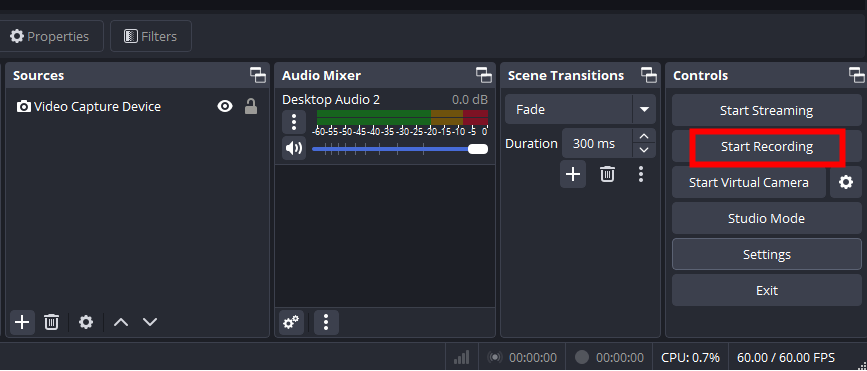
- Finally, hit Start Recording to start recording the YouTube live stream and Stop Recording to stop it. You can find the video in the Path folder you chose.
![youtube live stream download free]()
Way 3: YouTube Live Stream Download by Command Line Ytarchive
A command line means interacting with a computer program by inputting text lines called command lines on computer terminals. It is free and without interruption or connection. Ytarchive is a command line to download live YouTube stream.
Cons:
-
It is not user-friendly for beginners.
- You have to type manually the command lines correctly, if not, you may accidentally delete files.
- It may not provide easily observed visual feedback for the next operations.
- The quality is not as good as a professional YouTube downloader.
Detailed tutorial on YouTube live stream download:
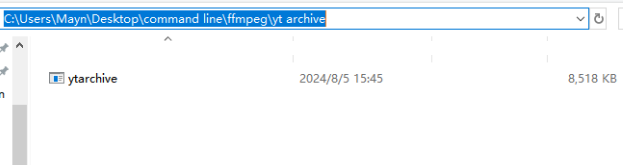
- Download YTarchive and FFmpeg. Make a separate “yt archive” folder in the FFmpeg folder and place the ytarchive.exe file in it.
![youtube live stream download free command line]()
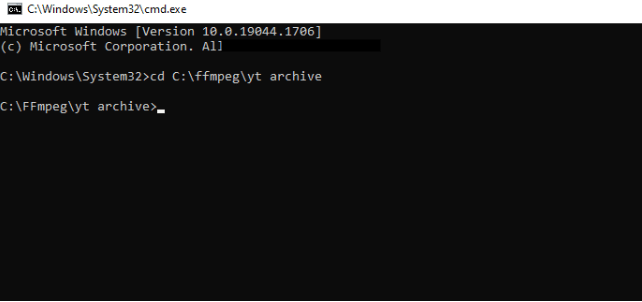
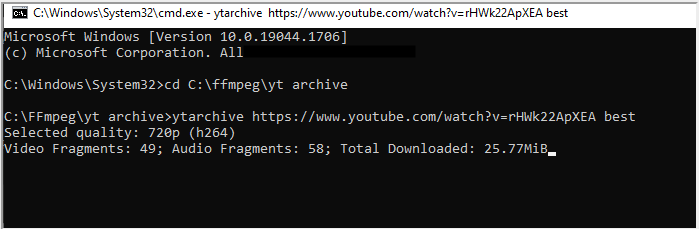
- Open the command prompt window by searching “cmd” on your computer. Type your folder path to open ytarchive.
cd C:\ffmpeg\yt archive![download youtube live stream Ytarchive]()
- Then copy the YouTube live stream URL and type like this:
ytarchive https://www.youtube.com/watch?v=O9XqqcH46Bc bestTips: best here means the video quality, you can also precise it like 144p, 360p, 720p, 1080p, 1080p60, 1440p.This command is for a live stream that already started, if you want to download live streams that haven’t started yet or are scheduled to start, you can try this:
ytarchive -w url best - Press Enter and let the command line do the business.
![download youtube live stream command line]()
Way 4: How to Download YouTube Live Video Online for Free (No Software)
Only works AFTER the live ends, fails on videos >2 hours.
A majority of people appreciate web-based tools because of their accessibility and convenience without installation. If you just want to download several times and with a short video, an online downloader is the best choice.
I’ve tested a dozen of online tools for downloading live streams from the most searched results of Google, but there’s no one that can actually do the job. Locoloader can, but not directly, you have to install VLC and use the command line to finish the job (click here to try this way, but I don’t recommend it since it is not easy and you have to install software).
So, I came to the conclusion that there’s no online tool for downloading YouTube live streams directly. What I recommend is waiting for the live stream to end and then downloading the complete video with an online downloader - playlistdownloadr.com.
Online tools’ Cons:
- However, it is a bit complicated to use for new users.
- As a video recorder, you cannot use the computer when it records the screen.
- In addition, the quality is not as good as a video downloader.
How to download a YouTube live stream online:
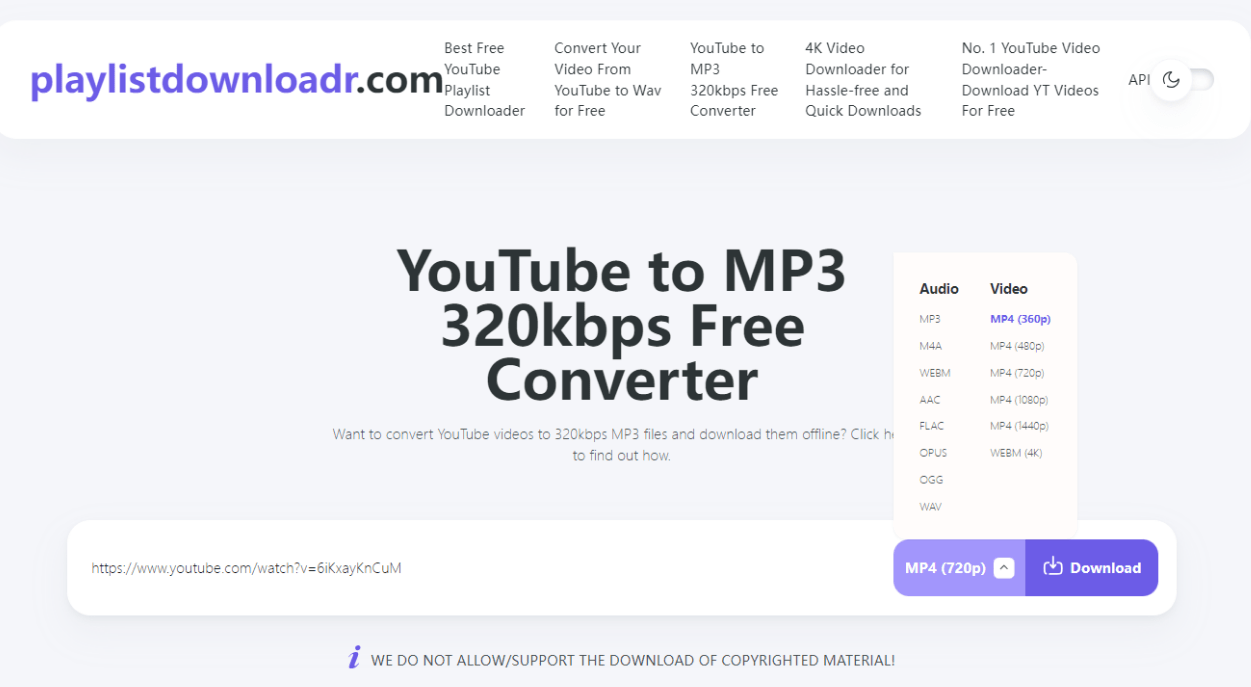
- After the live finishes, find the video, and copy n paste the URL into the search box.
![download youtube live stream online]()
- Choose a format and a resolution, and click download.
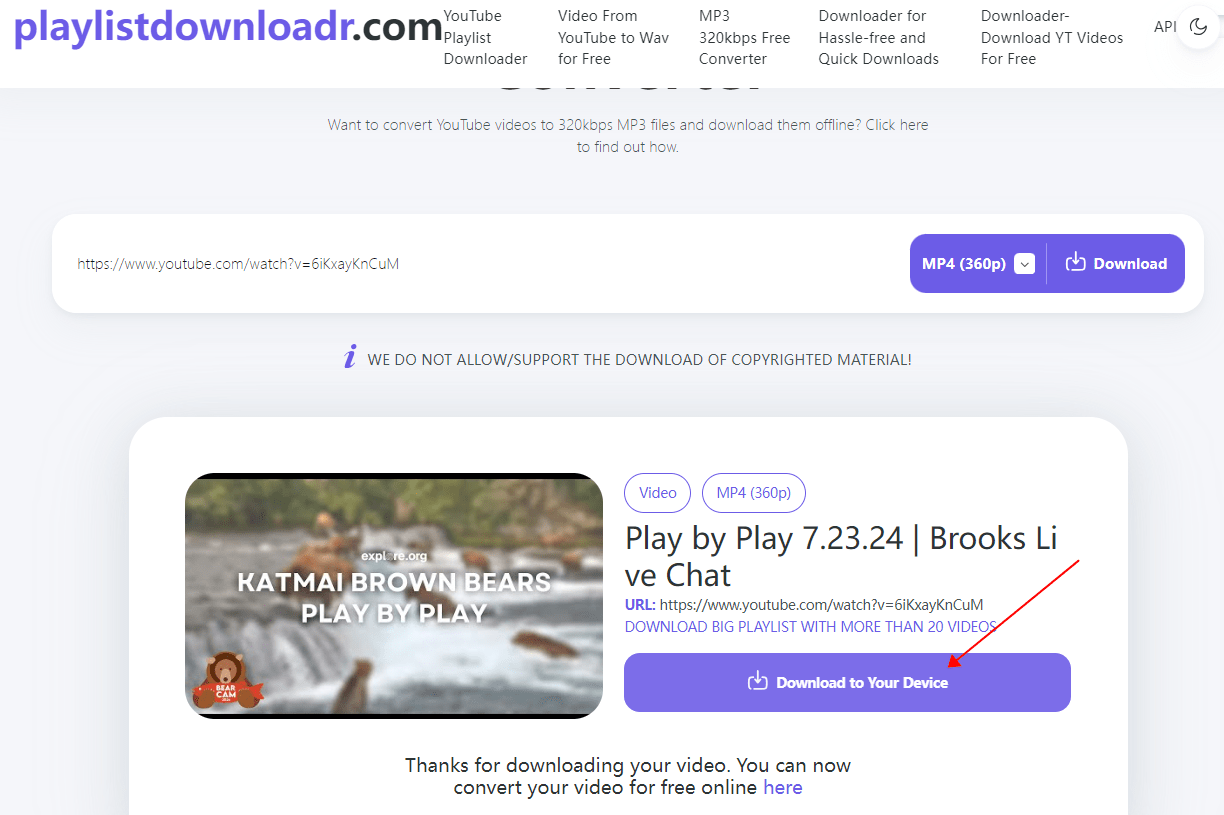
- If a redirect page appears, close it and you will find the video shown below.
- Click on Download to Your Device and it starts downloading. The speed depends on the duration of the video and the resolution you chose. Find it in the download folder and check the quality.
![download youtube live stream free online]()
Tips: not all YouTubers will post their finished live streams later, sometimes you wait until the end to download, but you can no longer find it. So a professional live YouTube downloader is much better.
Way 5: Application to Download Live YouTube Stream on Android
For people who are used to watching YouTube live on mobile phones, it is more convenient to download the live on phones. You can use a video downloader to save it, or, you can record it with a screen recorder, which I suggest because it’s totally free and you can start recording every time you want to save the highlight part.
Normally, if we download the whole live stream, it takes too much storage in our Android and will affect its processing power. So, my advice is to download long live streaming with software on the computer, and short and most important ones on Android, or make a cut of the long ones on the PC and then transfer it to the phone.
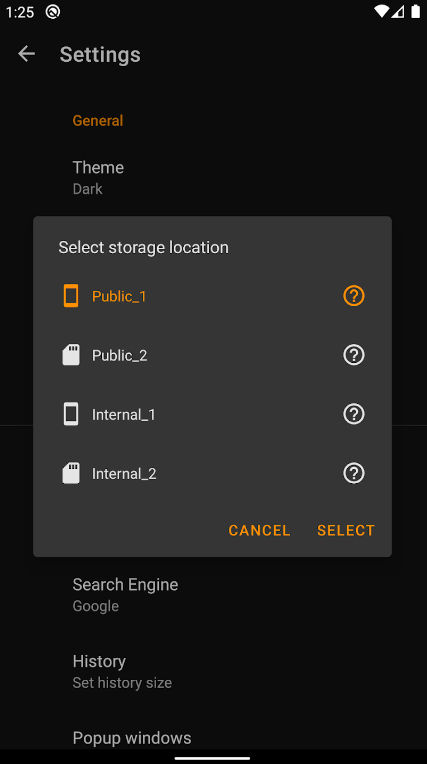
If you want a video downloader other than a screen recorder on Android, I’ll present the app Live Video Stream Downloader. It supports downloading live stream YouTube on the phone and saving it on SD card.
Cons:
- It contains ads.
- This app may share data like location, and personal info with third parties.
- You cannot delete your data.
How to download YouTube live stream free on Android:
- Download and open the app on your Android.
- Enter the YouTube live URL and play it.
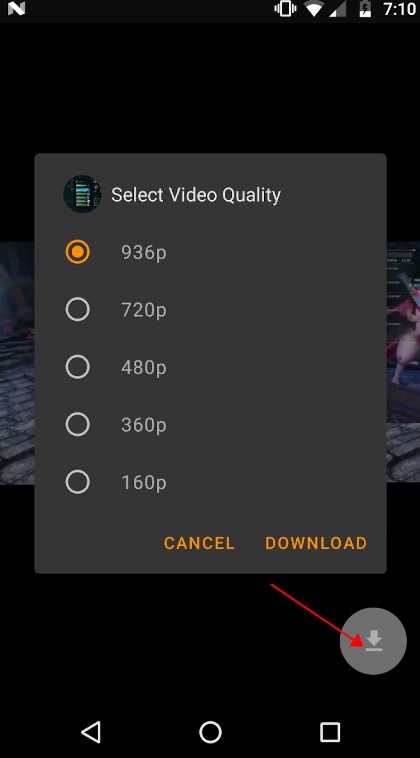
- Click the download button and choose a quality, then hit Download.
![download live youtube stream mobile phone]()
- You can choose where to place the downloads in the settings.
![download live youtube stream android]()
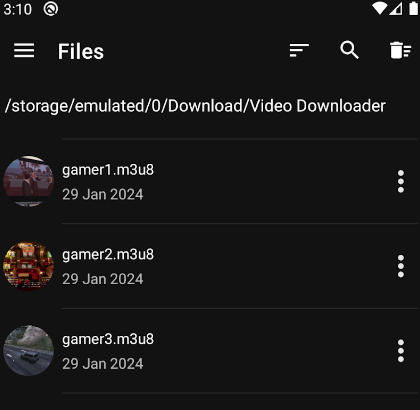
- You’ll find it in the files after it finishes.
![download live stream youtube mobile android]()
Way 6: Can I Download My YouTube Live Stream?
Yes, if you are a live stream creator, you can get the live stream video after it ends in YouTube Studio. You can download it by default to a 4K MP4 file.
Cons:
- It archives only lives treams that are under 12 hours long.
- You have to wait for the video to be ready a while after the livestream finishes.
- You can only download your own past live streams.
Instructions on one’s YouTube live streaming download:
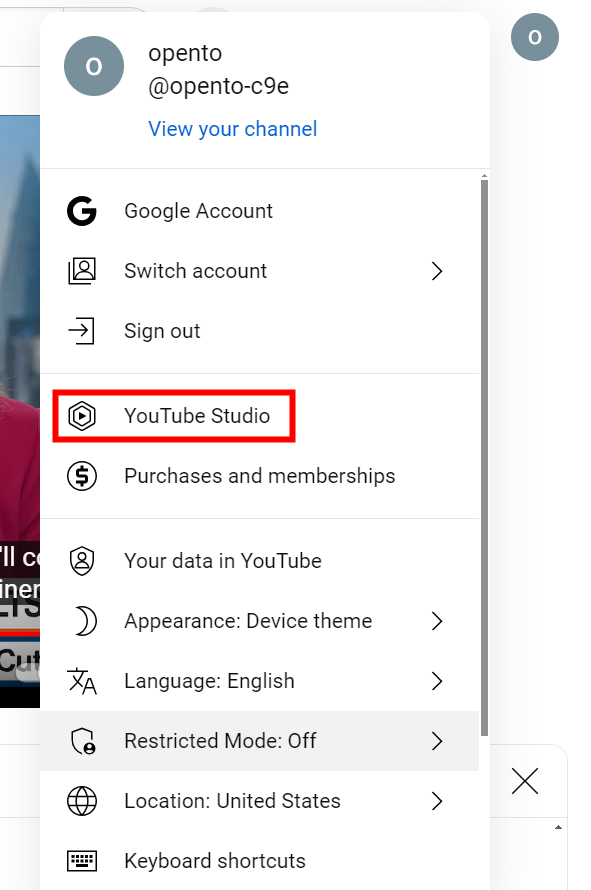
- Click on your account and choose YouTube Studio.
![download past youtube livestream]()
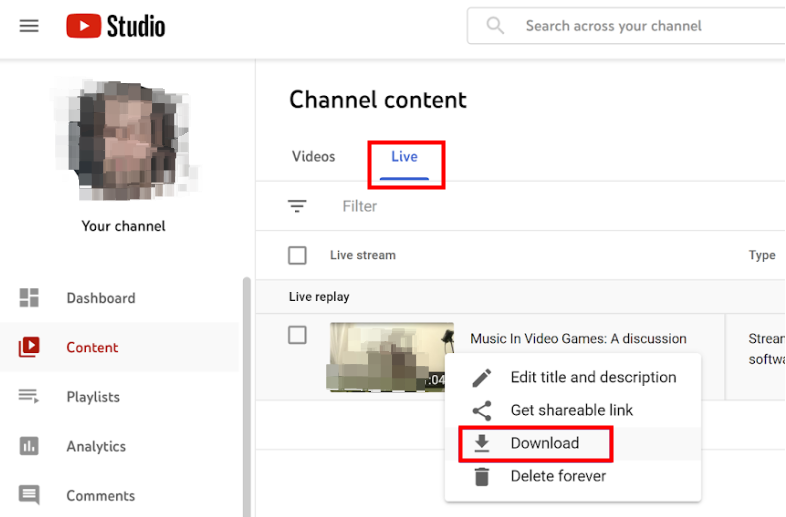
- From the left menu, hit on Content. Under the Live tab, you’ll find your livestreams.
![download past youtube livestream on youtube]()
- Find the three-dot icon under the video title, click on it, and choose Download.
Comparison
Do you now have a clue of using which way to download YouTube live stream? Maybe after reading all these methods, you get a bit confused about so much information. Then, this comparison form based on tests may help you make it clear about each way’s pros and cons.
|
Ways |
iFunia |
OBS |
Ytarchive |
Online |
Android |
YouTube Studio |
|---|---|---|---|---|---|---|
|
Compatibility |
Windows, Mac |
Windows, Mac, Linux |
Windows, Mac, Linux |
Any browser |
Android |
Windows, Mac, Linux |
|
Output format |
MKV only |
MKV, FLV, MP4, MOV |
MP4 and others |
Normally MP4 |
MP4 |
MP4 |
|
Quality |
High |
Medium |
Medium |
Low |
Medium |
High (4K) |
|
Speed |
Fast |
Slow |
Fast |
Slow |
Slow |
Fast |
|
From the start |
✓ |
X |
✓ |
X |
✓ | ✓ |
|
Ongoing live stream |
✓ | ✓ | ✓ |
X |
✓ |
X |
|
Ads-free |
✓ | ✓ | ✓ |
X |
X |
✓ |
|
Easy to use |
✓ |
X |
X |
✓ | ✓ | ✓ |
| Rating |
⭐⭐⭐⭐⭐ |
⭐⭐⭐ |
⭐⭐⭐ |
⭐⭐ |
⭐⭐⭐ |
⭐⭐⭐⭐ |
✅ After the stream ends → Use a downloader tool
⚠️ During live stream → Use screen recording
❌ If deleted or private → Download may not be possible
According to the form, I recommend iFunia YouTube Downloader, it’s not totally free, but as a professional livestream downloader, it solves all hassles and difficulties that other methods cannot accomplish since the livestream download is a complex job and demands technical configurations. If you hesitate, download it and use the 14-day free trial before making any decision.
FAQs
Q1: Is There A Browser Extension to Download YouTube Live Stream?
Not really. Due to Google’s terms of service, it is not allowed to download YouTube live streams with extensions. You can use a screen recorder extension anyway, like Screenpal and Vmaker.
Q2: What Screen Recording Program Do You recommend?
As I mentioned, the YouTube live stream download is not an easy job, it has restrictions and technical difficulties. So, it seems a screen recorder makes it easier to save the live streams.
The freeware OBS I presented in Way 2 is the best free screen recording software in terms of recording whatever you want for how long you want.
Q3: How to Save the Live Streams to Other Formats like MP4?
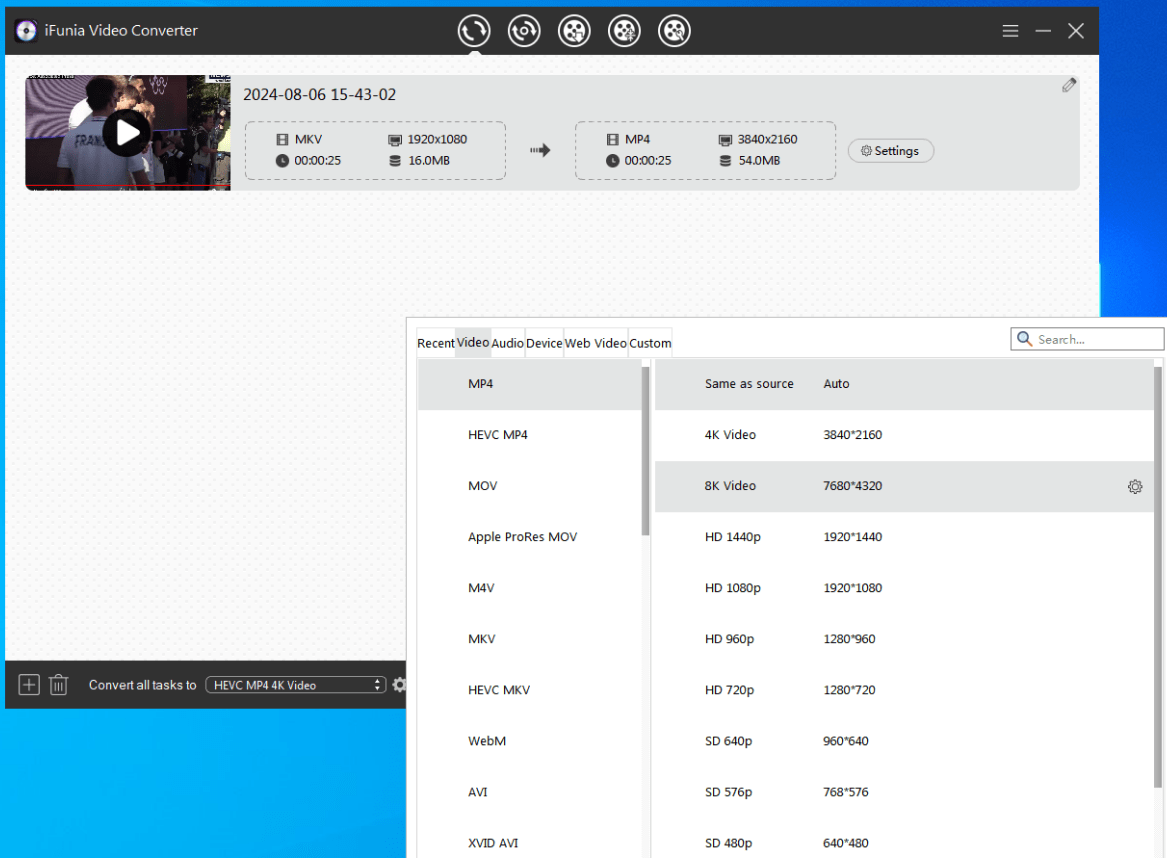
I highly recommend iFunia Video Converter. It can convert between hundreds of formats with 30X speed. Feel free to try the 14-day free trial. Check this article I wrote on how to convert .mkv to .mp4.
Q4: How to Live Stream On YouTube as A Creator?
It is a good idea to live stream on YouTube because it will create a community in real-time and you can stream a game, teaching what you are professional in, or just have a live talk with your audience.
To live stream on YouTube, you have to own at least 50 subscribers and verify your channel. You can live stream via OBS and with tools on YouTube that help manage and interact with viewers. (for more details, read here)
Don't be afraid to make a mistake and try to read other creators’ experiences on forums to improve your shows, hope you enjoy it!
Disclaimer
The methods in this article are for personal use only. Before downloading, you must comply with copyright laws and obtain permission from the owner for protected content. The author is absolutely against the downloading of unauthorized video/audio files or using them for commercial gain.

Chloe LEE is good at explaining and solving complex technology problems to her readers. Since joining iFunia Studio, she has focused on writing articles about video and DVD software, and how-to tutorials.
Comments (0)
Leave a Reply