


4 Proven Ways to Download Blob Video on Mac and PC




Want to download a video but found that the file URL had a blob attached to it? or the file format was m3u8 or ts.
Like other embedded videos, we can find Blob URL addresses with the webpage's DevTools. But these links cannot be accessed; even if we type this URL into browser or other video downloader, we are unable to download the blob video.
So, I've looked into how to download videos from blob URLs and M3U8 files (HLS format) and how to save them as MP4 files. Here, I’ll share the download method so I don't forget.
It takes less than 10 minutes.
- What is a Blob Video
- Why Blob Videos Can’t Be Downloaded Normally
- How to Download Blob Videos (Methods That Actually Work)
- How to Download Blob Videos via Browser Extensions (Chrome/Firefox/Safari)
- Download Blob Videos without Any Tool (Only for Vimeo Blob Video)
- Download Blob Videos with Online Sites
 iFunia YouTube Downloader
The Best Blob Video Downloader
- Download blob videos from Facebook, Twitter, Vimeo, YouTube, etc.
- Allow you to save videos from more than 1000 websites
- Save .m3u8 files, .ts files, 4K/2K/1080p/720p videos
- Provide all available quality levels for you to choose from
- Batch download blob videos and other videos with high speed
- Offer multiple download formats such as MP4 and MP3
- Rip entire YouTube channel with 1 click
 Free Download macOS 10.15 or later
  Free Download Windows 10 or later
What is a Blob Video?
Before getting started, let’s learn a little bit about blob (Binary Large Object) videos.
Blob, short for Binary Large Object. It's primarily used when handling multimedia data such as images, audio, and video. The Blob URL contains pseudo protocols that generate a temporary URL, which refers to the video file. This type of URL is just a pointer to the raw video held in the browser's memory, not the video itself. so you can’t download it directly.
Why Blob Videos Can’t Be Downloaded Normally
Previously, users could download embedded videos from streaming sites via "Inspect Element." We just needed to locate the right video URL and right-click to save it. But things have changed since many sites decided to use blob URLs to prevent such illegal downloads.
In this way, video is broken into hundreds of tiny fragments (.ts files) rather than one single .mp4. To download the video, you need to find the true source of the file, instead of those in blob: http…
How to Download Blob Videos (Methods That Actually Work)
Applies to: macOS, Windows
You can find blob videos on websites such as Twitter, Vimeo, YouTube and Facebook. Open a Facebook video on Chrome. Right-click and select Inspect. You need to bring up the search field if you don’t find one. Now search for blob. You should find the blob URL, as shown in the screenshot.
- A regular Facebook video URL: https://www.facebook.com/oregonzoo/videos/682125925664751/
- A Facebook video blob URL: blob:https://www.facebook.com/b349c961-1863-436b-902d-09350e8e5409
This part will show you how to save blob video with utmost ease and best quality.
iFunia YouTube Downloader can download videos, including blob videos, from over 1000 websites such as Facebook, Twitter, Vimeo, Reddit, Dailymotion, Instagram, etc. It supports SD and HD video content, including 1080p, 2K, 4K, and even 8K.
Step 1. Download and install the Blob Video Downloader. Launch the app.
Free Download macOS 10.15 or later Free Download Windows 10 or later
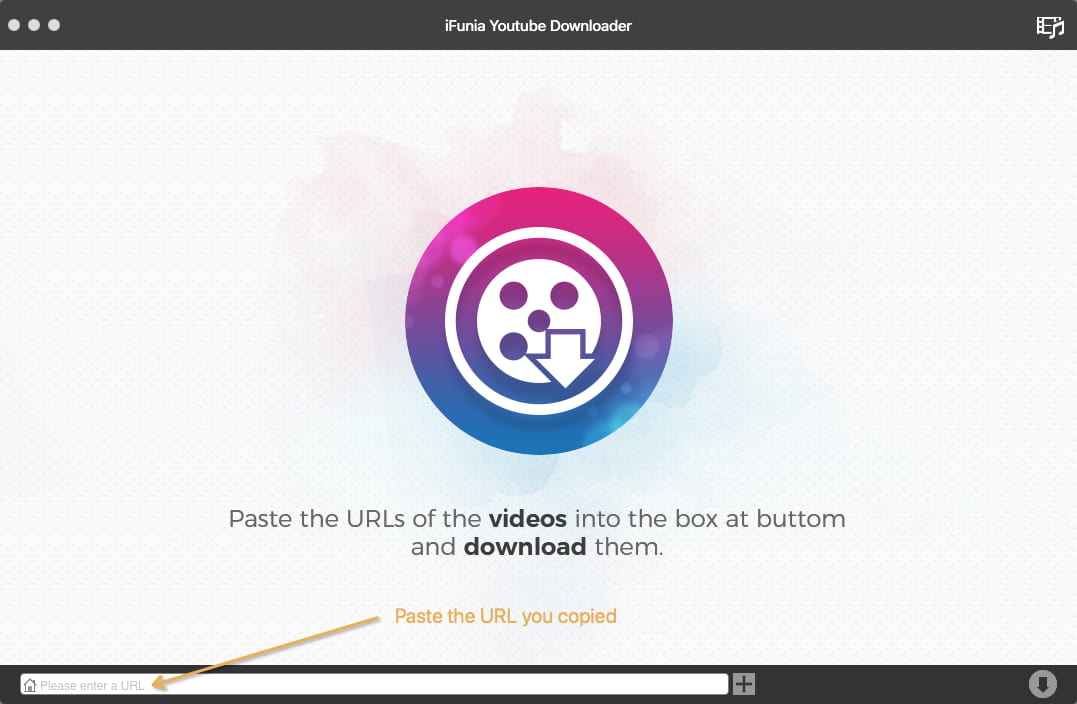
Step 2. Copy a regular video URL (NOT the blob URL) from a website. Return to the said app, and paste the URL to the bottom of iFunia. Hit the Return key, or click the + icon.
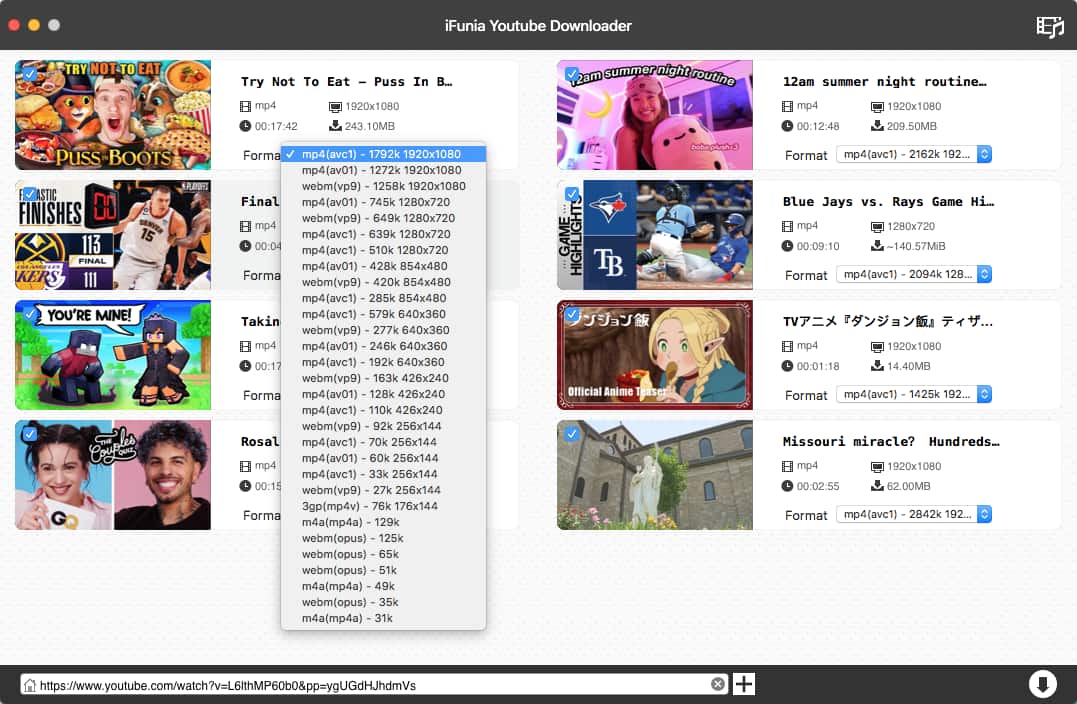
Step 3. Once it finishes analyzing the URL, click the Format dropdown list that appears and select a desired option, say, MP4 – 1920 × 1080. Click the download icon.
It’s that easy. When it finishes, you can click the folder icon to open the folder where your downloaded blob video is stored.
Below is a tip.
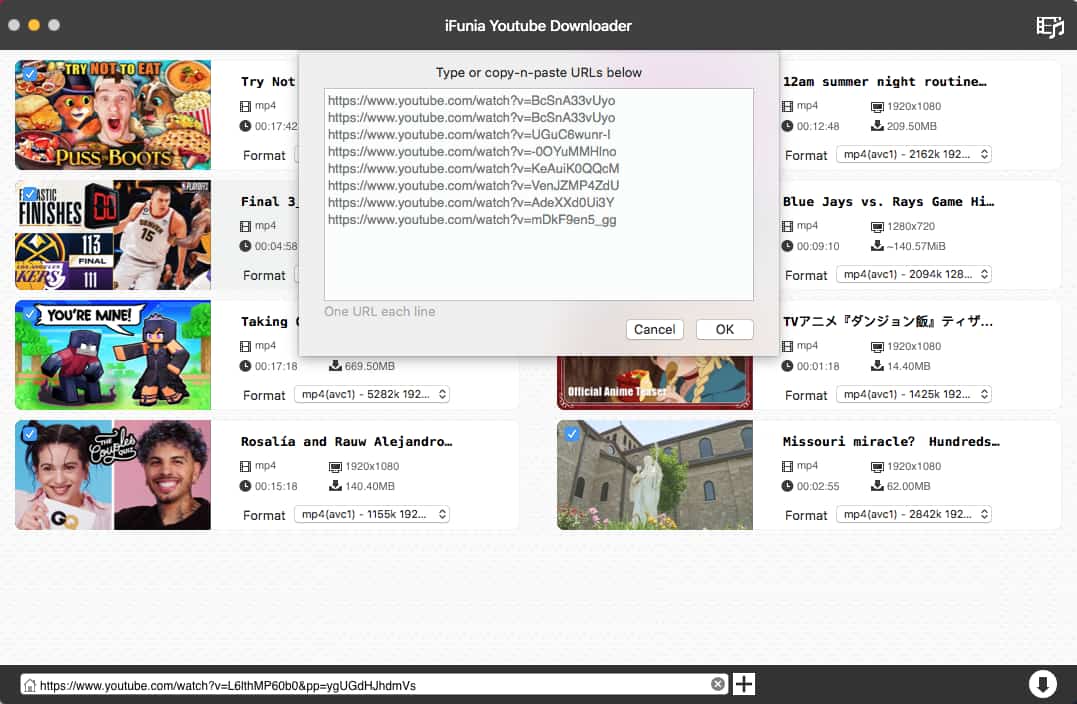
To download blob videos in bulk, you can repeat the process. Or, there is still an easier way. From the menu bar at the top of your screen, select File > Input URLs. Paste multiple URLs. Click OK.
iFunia YouTube Downloader main features:
- Download blob MP4
- Download blob MP3
- Save videos including blob videos from over 1000 websites
- Support videos ranging from SD to Ultra HD
- Let you choose output video quality and format
- Allow batch download
- Provide fast speed
- Easy to use
Free Download macOS 10.15 or later Free Download Windows 10 or later
#2 Use aTube Catcher
Applies to: Windows XP or later, including Windows 10
If you are a PC user, you can use this Windows-only app to save blob video in a similar way.
Step 1. Download and install the app on your computer. Open it.
Step 2. Now you are under the Downloader tab. Paste the regular video URL (rather than the blob one) in the URL del Video field.
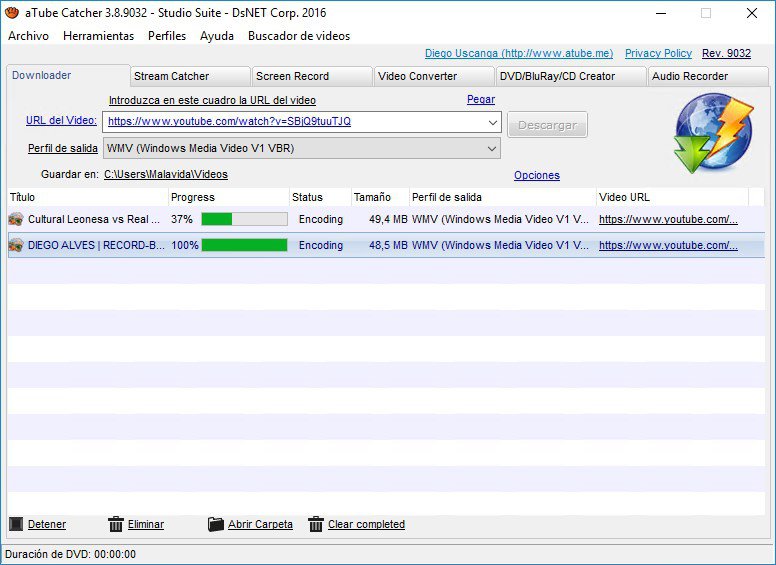
Step 3. Click the Output profile dropdown list. Select the format and resolution you need.
Step 4. Click the Download button. It will immediately start downloading blob video.
Tip
Here’s a tip, which may be useful regardless of the operating system you are using.
As you can see, it’s very easy to download blob videos from popular video-sharing websites and social media platforms. When it comes to a few certain websites, things can be a bit complicated. Downloading through the regular video URL may not work. The good news is that there is an easy workaround.
Step 1. Play the blob video in Chrome. Right-click and choose Inspect.
Note: If you use a different web browser such as Safari, the steps will basically be the same, with only slight difference.
Step 2. Go to the Network tab and select All. Find the Filter field and enter m3u8 in the field. By placing your mouse over the result, you will see an URL with the ending .m3u8.
Step 3. Right-click the result and choose Copy > Copy link address.
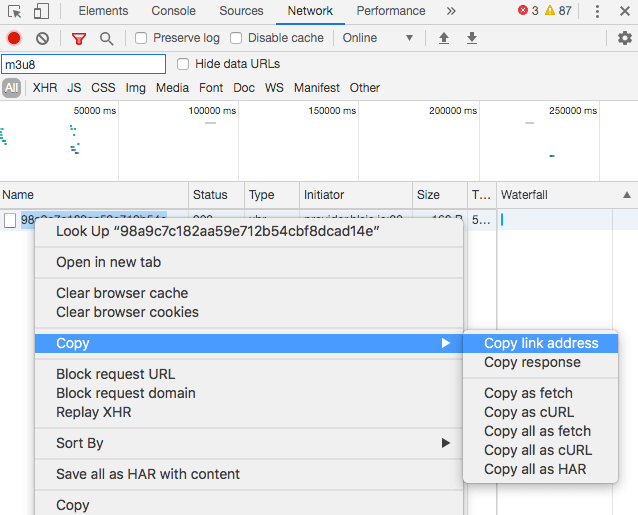
Step 4. Paste the link in one of the blob video downloaders recommended above.
How to Download Blob Videos via Browser Extensions (Chrome/Firefox/Safari)
Applies to: macOS, Windows
You can also use a web browser extension for this purpose.
#1 Google Chrome
Step 1. Visit the Chrome Web Store. Search for Video Downloader Professional by Videodownloader.io, a Chrome extension allowing users to download a blob URL video.
Step 2. Once the extension is installed on your Chrome, its icon will appear in the toolbar.
Step 3. Play the blob video that you want to save to your computer. Click the said icon. It will detect the blob video and provide a download button.
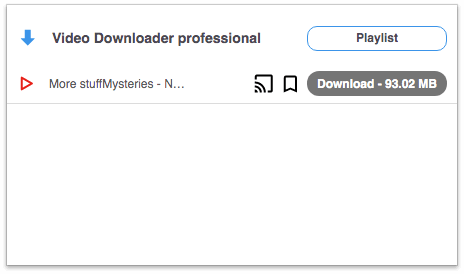
Step 4. Click the button.
The extension is easy to use. However, there are some downsides.
- Can’t download blob URL videos from YouTube and some other places
- Fail to detect videos sometimes
- May result in high CPU usage
#2 Firefox
Step 1. Install Video Downloader professional by startpage24 on your browser.
Step 2. Play a blob video and click the extension’s icon in the toolbar.
Step 3. The Found video files section will list the video quality levels available for download. Select the quality you need and click the Download button.
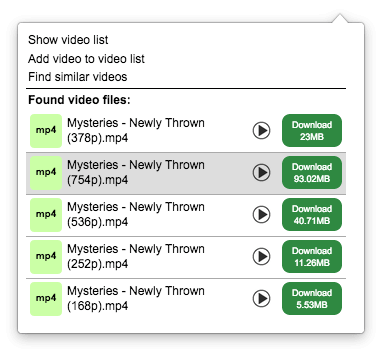
Note that sometimes you may get the Downloading this video is not possible with a Firefox add-on message.
#3 Safari
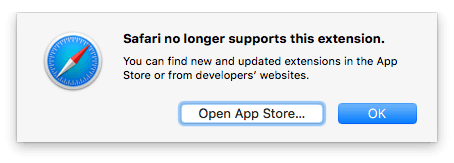
FastestTube offers a blob video downloader extension for Safari. However, it is not supported by the current Safari. To make it work, one needs to downgrade Safari, which seems not worth it. Mac users can use the first app that I recommend in the article.
Download Blob Videos without Any Tool (Only for Vimeo Blob Video)
Applies to: Windows, macOS
Note that this method can only download Vimeo blob video.
Step 1. Open a Vimeo blob video in a web browser. I’m using Chrome.
Step 2. Right-click and select the Inspect option that appears. Find the blob URL.
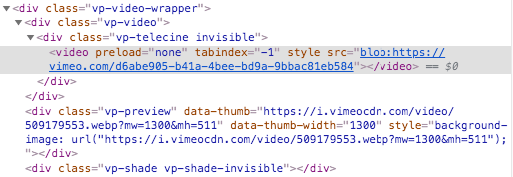
Step 3. Replace the blob URL with x.
Step 4. Right-click the element and select Edit as HTML. Replace x with y.
Step 5. Exit the edit box, and a new URL will be generated, as shown in the screenshot.
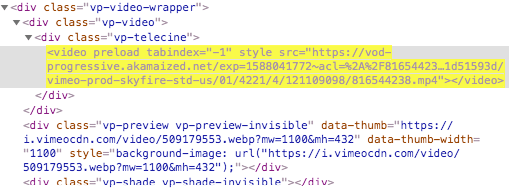
Note: If it fails to generate such an URL, you can repeat the three steps above.
Step 6. Now open the said URL in your browser.
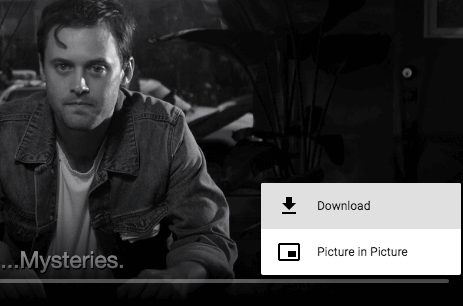
Step 7. Click the three dots icon in the bottom right corner of the player screen and select Download. It will start downloading blob MP4.
Download Blob Videos with Online Sites
Applies to: macOS, Windows
There are lots of web-based tools designed to download videos including blob videos from websites like Facebook, YouTube and Twitter. The advantage is that you don’t need to download and install anything.
However, there can be a few disadvantages at least with some of such tools. I have tested several popular online blob video downloaders and found some shared downsides. One may overcome the last two issues by using an ad blocker.
- Limited supported websites
- Annoying or potentially malicious ads
- Clicking the download button or a similar button will take you to an irrelevant (unwanted) website
That being said, there are still some decent blob video downloaders online. Below is how to download blob video using this method.
Step 1. Copy a regular video URL.
Step 2. Visit https://en.savefrom.net/. Paste the link in the URL box.
Step 3. Click the Download button, which will bring up a new Download button.
Step 4. Click the dropdown list to choose a resolution option such as MP4 1080p.
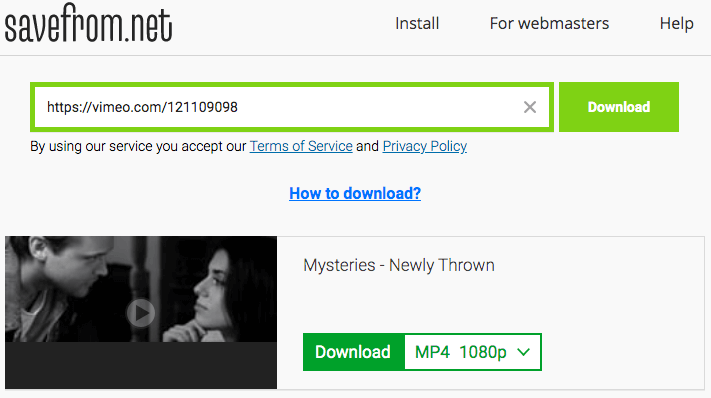
Step 5. Click the Download button, and it will automatically play the video. Right-click the video and select Save Video As, which will save the blob video in MP4 format.
Conclusion
There is more than one way to download blob videos from Facebook, Twitter, YouTube, and other websites. If you have the habit of saving videos to your computer for offline viewing, it’s recommended to use desktop software like iFunia YouTube Downloader, which can provide fast speed, a long list of supported websites, various video qualities, multiple output formats, and an easy, reliable user experience.
Disclaimer
The methods in this article are for personal use only. Before downloading, you must comply with copyright laws and obtain permission from the owner for protected content. The author is absolutely against the downloading of unauthorized video/audio files or using them for commercial gain.

Chloe LEE is good at explaining and solving complex technology problems to her readers. Since joining iFunia Studio, she has focused on writing articles about video and DVD software, and how-to tutorials.
Comments (1)
Leave a Reply
Andrew C.
I need to download a blob video from Vimeo, and all the Chrome extensions failed. So I downloaded using iFunia, works perfectly!