


How to convert MKV to iMovie on Mac Fast and Easily?




"Hey, I have an .mkv video file and I am trying to import it into iMovie. The file size is 1.4GB, and if I drag it into iMovie, it freezes. any ideas?? thanks."
If you are in similar situation, you will find 3 easy and fast ways to import/convert MKV to iMovie for further editing or other purposes.
 iFunia Video Converter
Best MKV to iMovie Converter
- Convert MKV files to all videos and audios that iMovie support, and even offer more options for people to choose
- Offer a built-in batch processor to batch convert multiple files without limitation
- Compress MP4, MOV, MKV, HD, 4K, 8K... to the smallest possible size without visible quality loss.
- Provide a wealth of editing features to modify the files
- Allow users to adjust the embedded video and audio files from quality, codec, bit rate, resolution, etc.
- Easy to operate with the clear and intuitive interface
- Offer a 30X faster speed to make conversions without quality loss
- Work on Mac and Windows
 Free Download macOS 10.13 or later
  Free Download Windows 10 or later
Basic Knowledge We should Know First Before Importing MKV to iMovie on Mac
Yes, we may have learnt or now realize that iMovie doesn't open MKV.
iMovie is a program for iOS and macOS users to create trailers or movies, offering plenty of built-in features to help edit and customize media files. You can find a list of its supported formats:
- iMovie Supported Video formats:3GP, AVI, M4V, MOV, MP4
- iMovie Supported Audio formats: AAC, AIFF, BWF, CAF, MP3, MP4, RF64, WAV
- iMovie Supported Image formats: BMP, GIF, HEIF, JPEG, PNG, PSD, RAW, TGA, TIFF
According to above, iMovie doesn't support opening and importing MKV files.
To import MKV to iMovie on mac, you will need to convert MKV to iMovie supported formats. Most of the time, you are recommended to convert MKV to MP4, then import to iMovie for further editing. Here we offer 3 ways to convert MKV to iMovie .
How to Convert MKV to iMovie on Mac?
Solution 1. Convert MKV to iMovie Fast and Easily
It is true that there are quite a lot of MKV to iMovie converters available to perform such a conversion. But for users who want to convert MKV to iMovie fast and easily, with original video quality, we here recommend iFunia Video Converter.
iFunia Video Converter is a multipurpose desktop program for Mac and Windows, packing with a video converter, online video downloader, even a video editor to manage your video files on cross platforms.
Main Features of iFunia Video Converter
- Convert 400+ formats of videos and audios;
- Convert MKV to all iMove formats;
- Convert fast and highly maintain original quality;
- Batch convert;
- Support 4K videos;
- Rip DVD videos or movies;
- Download YouTube or other online videos from 1000+ websites;
- Edit videos: Crop, trim, merge, add watermark/subtitles/effects or others;
- Offer a preview function to view the editing results in advance
- Compatible with Mac and Windows
Steps to Convert MKV to iMovie with iFunia
Step 1. Run iFunia Video Converter on your Mac.
Free Download macOS 10.13 or later
Drag and drop MKV or HD MKV video files to the interface. You can also click the Media Browser icon at the upper right corner to import MKV video files from Folder, iTunes and Device. To batch process MKV videos, you can import multiple files.
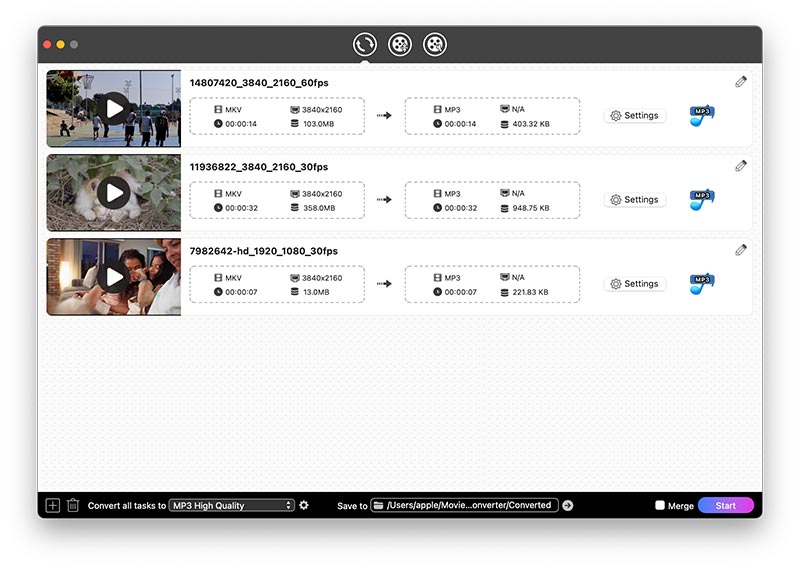
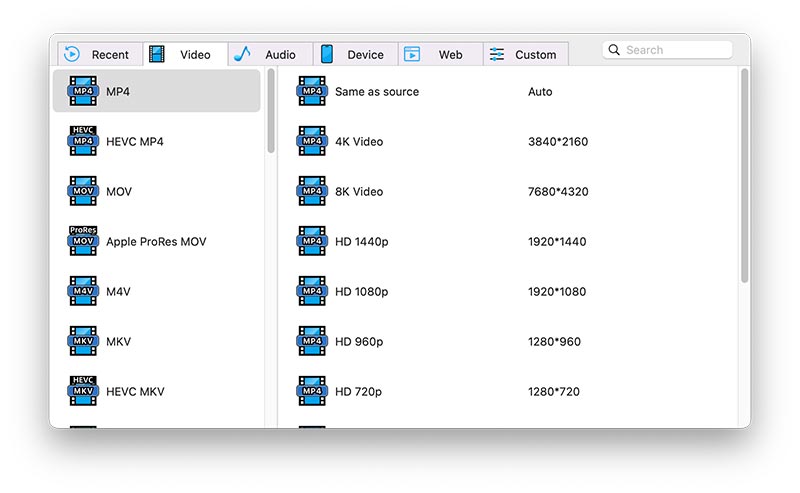
Step 2. Select MPEG4(MP4) as the output format for easy importing to iMovie.
You can click on the format icon on each imported video, then choose the output for each video.
Step 3. Click the Start button to start converting MKV to iMovie.
The convert progress bar shows you how much of the encoding is completed.
Solution 2. Convert MKV to iMovie Free with Handbrake
Handbrake (the latest mac version1.2.2) is an open source allowing users to convert most common multimedia files and non-protected DVD or BluRay sources into both MKV, WebM and MP4 format. To edit and customize the video as the way users expect, Handbrake packs in a basic set of tools to preset, adjust quality/dimension/filters, add subtitles/chapters, etc.
However, Handbrake has to re-encode and/or re-compress videos that takes relatively longer time to finish a conversion. In addition, you need to import files one by one to process the conversion, it doesn't support batch conversion.
Steps to Convert MKV to iMovie Free with Handbrake
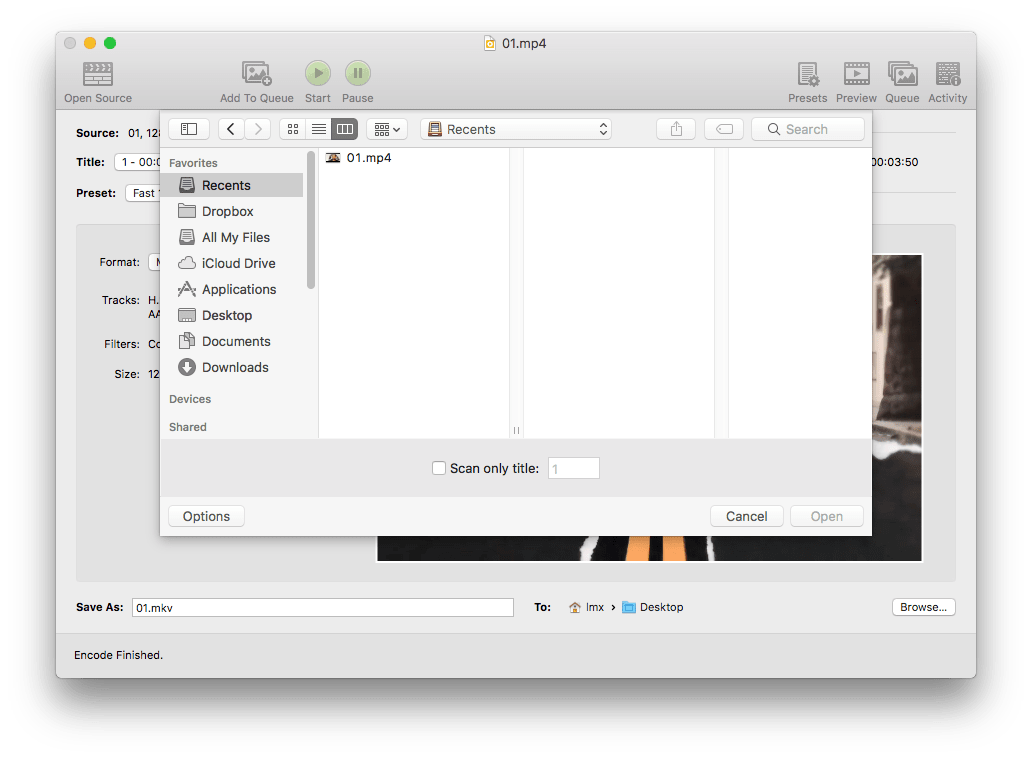
Step 1. Click "Open Source" to import MKV files to Handbrake.
Step 2. Go to Format menu and choose MP4 as the output.
Also, you can check presets or others tools to customize the output video as needed.
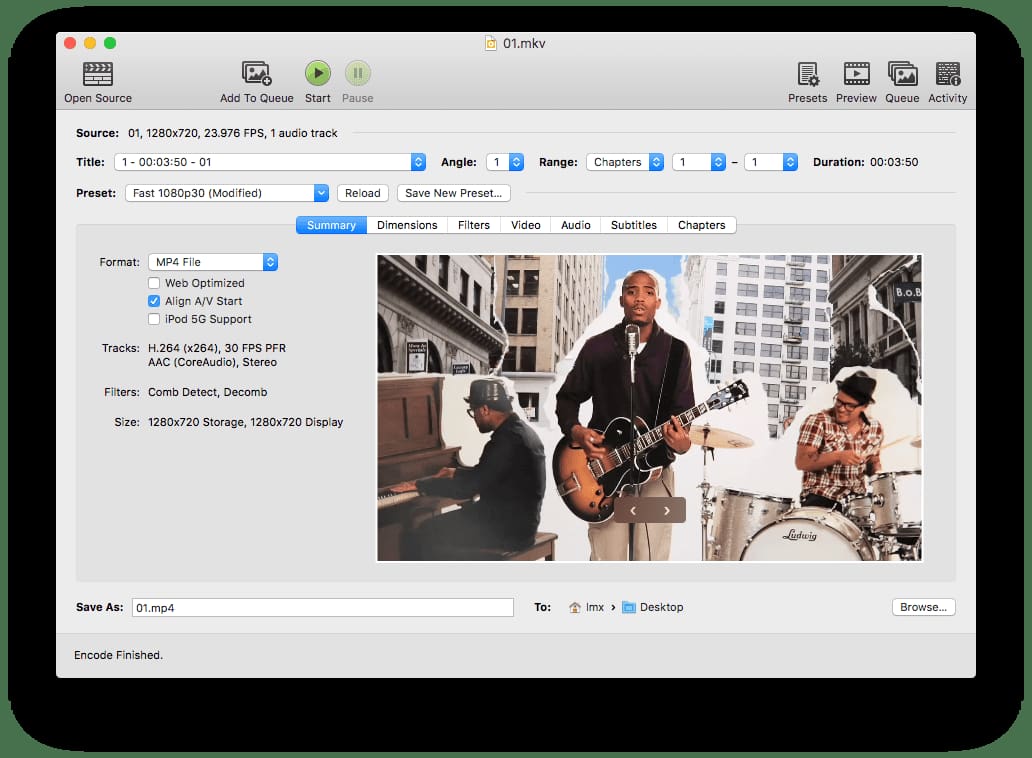
Step 3. Then click "Start" to free convert MKV to iMovie MP4 format.
Solution 3. Convert Small MKV to iMovie Online Free
For users who don't need to convert MKV to iMovie very often, online video converters are also a good choice. But for information safety, make sure you are not uploading highly private videos for conversion.
The online video converter we recommend to convert MKV to iMovie MP4 format is online-convert. It is a powerful file converter to help users to convert archive, audio, document, ebook, image and video. When converting MKV to MP4, online-convert allows users to manually adjust the settings for customization.
Steps to convert MKV to iMovie MP4 Online Free with Online-Convert
Step 1. Go to Online-Convert.
Step 2. Upload MKV files from Mac or other source.

Step 3. Manually adjust the settings to customize video output.
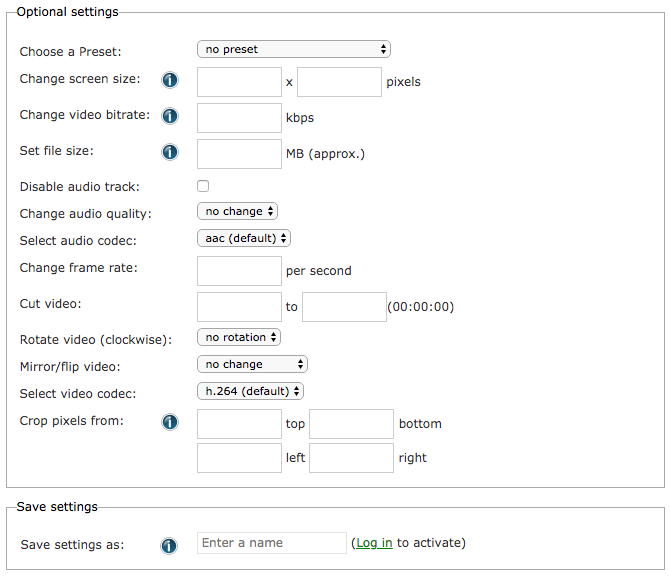
Step 4. Click "Start conversion" to save MKV as iMovie MP4.
Once the conversion finishes, the iMovie MP4 video will be downloaded automatically, then save to your Mac.
Extended Knowledge: MKV and iMovie Format
MKV(Matroska Video) is a popular format for online video distribution (particularly through BitTorrent networks and all). It is an open and free container format to hold an unlimited number of video, audio, picture, or subtitle tracks within one file.
It offers high quality and is non-proprietary, but due to its complication, it often takes relatively larger size than other video format, even, due to its online origin, some users may doubt on its authority. For users who want to watch some HD movies or videos, MKV is a good choice.
Best iMovie Format---MP4. We know iMovie supports multiple video formats. But as you may have noticed, when exporting a video from iMovie, the file will be always saved in MP4 format. Why, because MP4 format is highly flexible with compressed size that can be easily circulated, also, it can be opened on by virtually all OS and players.
Conclusion
Though above listed 3 solutions are all about tutorials to convert MKV to iMovie MP4 format, if you want to MKV to all kinds of iMovie formats, you can directly download and install iFunia video converter on your mac to perform all wanted video conversions.

Chloe LEE is good at explaining and solving complex technology problems to her readers. Since joining iFunia Studio, she has focused on writing articles about video and DVD software, and how-to tutorials.
Comments (0)
Leave a Reply