


4 Ways to Convert MKV to AVI on Mac (Incl. Free)




Both MKV and AVI are file containers that allow you to store high quality videos. But AVI is well compatible with older portable media players, MP4 player, PDA, MP5, smart phones, tablets, etc. and has low requirements for hardware. So if you want to play your MKV videos on Mac with the old devices or the undeveloped hardware, you'd better convert MKV to AVI on Mac.
 iFunia Video Converter
Best MKV to AVI Converter you Cannot Miss
- Convert MKV to AVI or any other 400+ formats easily, including MP4, TS, MPEG, WMV, etc.
- Offer a batch-processing feature
- Allow to trim/crop/rotate the file at will
- Can also add subtitles, watermarks and video effects, including 3D effects
- Combine several files into one large file
- Built in a player to watch the added files
- Compress MP4, MOV, MKV, HD, 4K, 8K... to smallest possible size without visible quality loss
- Easy to use with each function
- Work on Mac and Windows
 Free Download macOS 10.13 or later
  Free Download Windows 10 or later
Solution 1. The Best Way to Convert MKV to AVI on Mac
iFunia Video Converter is the most powerful and comprehensive video converter, capable of converting 720p/1080p/4K/8K videos, including MKV to AVI Mac. It gives you an ultimate control over large clips, with the optimized engines and 30x faster speed. Aside from converting files to tons of formats, it lets you convert videos to portable device models directly as well. You can also adjust the video parameters, add special effects, and merge all your videos into one file.
Key features of iFunia Video Converter
- Convert MKV to any video formats like AVI, MP4, MOV, FLV, MPEG, etc.
- Convert to the most preset devices
- Compress MP4, MOV, MKV, HD, 4K, 8K... to smallest possible size without visible quality loss
- Further edit your video footage by built-in editing tool
- Offer preview function to check the editing result
- Batch convert several files at once
- Fully support OS X 10.13 +
- Also support Windows systems
How to Convert MKV to AVI on Mac with iFunia Video Converter:
Step 1. Launch the software on Mac
Download, install and open iFunia Video Converter for Mac.
Free Download macOS 10.13 or later
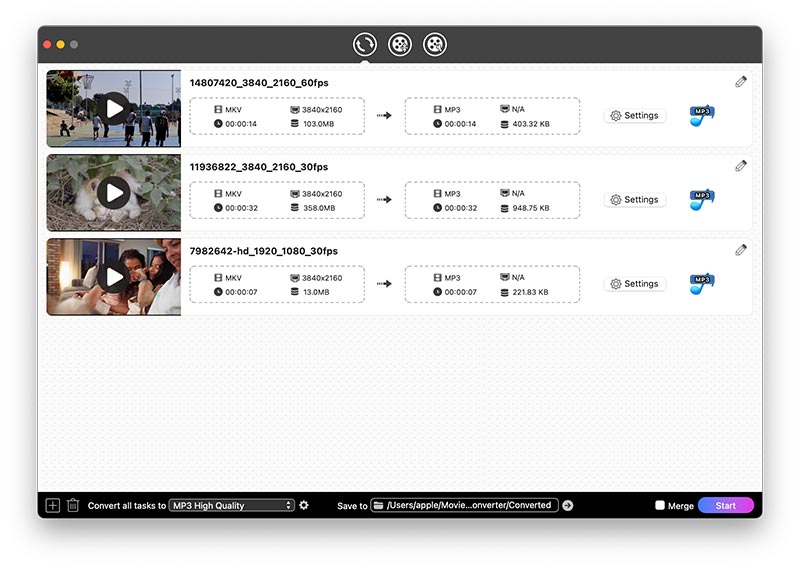
Step 2. Add MKV files (two ways)
1) Drag and drop MKV or HD MKV video files to the convert tab.
2) Click the Media Browser icon at the upper right corner to import MKV video files from Folder, iTunes and Device.
You can import multiple MKV files for batch processing.
Step 3. Select AVI as output format
Click the Format icon > choose "Video" category from the drop-down list > choose AVI Video or AVI HD Video as output format.

Note: It enables you to manually set video resolution, bite rate, codec and frame rate to get perfect output videos. Just click on the gear icon to go to customize advanced settings.
Step 4. Start converting MKV to AVI on Mac
Finally, hit the Start icon and wait for the MKV to AVI conversions. Once done, click the  icon to check your converted videos on your device.
Solution 2. Convert MKV to AVI on Mac Using VLC
VLC Media Player is a hugely acclaimed tool, which can not only play a wide variety of videos due to the abundant codecs it supports, but also convert files to different formats. However, VLC MKV to AVI converter Mac is rather slow to process the large files and might fail to convert the imported MKV files, just with the error messages popping up.
The Guide for MKV to AVI Conversion Using VLC:
Step 1. Head over to "File" menu > choose "Convert/Steam" from the drop-down box, and wait for the new dialog to open.
Step 2. Click on the "Open Media" to select an MKV file; alternatively, drag-n-drop the file to the software firsthand.
Step 3. Press "Convert/Stream" to proceed.
Step 4. Navigate to "Profile" > click the "Customize…" button > choose AVI in the "Encapsulation" tab > apply it.

Step 5. Click "Save as File" > put a name to your output AVI file and select a destination in which it will be stored.
Step 6. Click the "Save" button to begin the conversion now.
Solution 3. Convert MKV to AVI Free with Handbrake
Handbrake is a piece of open source software that boasts expansive packages for converting and ripping clips. You can convert the MKV file to AVI or other various formats for playback on heaps of devices. But Handbrake may have to re-encode and/or re-compress videos, and if this is the case, be prepared to leave your Mac on for processing for a considerable amount of time, as it will be time and resource-hungry.
Note: Handbrake ditched the output support for AVI format using DivX and XviD since version 0.9.4. The only 2 output options left are MP4 and MKV. Thus to convert MKV to AVI Mac straightforwardly, you should download and install the Handbrake 0.9.3 or earlier version.
Steps to Convert MKV to AVI on Mac Free with Handbrake:

Step1. Insert an MKV video into Handbrake.
Click "Source" to add MKV video (also supports to import MP4, M4V, FLV, M2TS, MTS, MOV, MOD, MPEG-4, H.264 etc. format).

Note: Handbrake doesn't support dealing with videos in batch, so you can only add one single video.
Step 2. Specify the Output settings
Click "Format" to choose an output format and adjust preferences to what you like. After the steps to add video and adjust the preferences for output, click “Add to Queue” to add into the waiting queue for conversion. If you ignore this step, the conversion for the video will be missed. Then you can add another video to set up to add to the queue.

Step 3. Save MKV files as AVI
Click "Start" to convert the videos waiting in the queue.
Solution 4. Convert MKV to AVI Online
FreeFileConvert boldly promises that it supports 8372 conversion combinations between audio, video, document, archive, etc. It's up to import 5 MKV files at once, which can’t exceed 300MB in total, so FreeFileConvert may not be a good option to convert large MKV to AVI online. Note: most online tools can only deal with video conversion in small size.
How to Change MKV to AVI Online:
Step 1. Open www.freefileconvert.com in your browser.
Step 2. Upload the MKV files from your Mac, URL or Cloud server (Google Drive, Dropbox).
Step 3. Choose AVI as target format from the output format menu.
Step 4. Hit the "Convert" button to change MKV to AVI on Mac. All the converted files will be removed from the server after 24 hours and can be downloaded up to 5 times.

Extended Knowledge about MKV File
What are MKV files?
MKV (.MKV), a new video and audio container format, which is similar to another compression format called AVI. But MKV provides several new features like support for OGG audio, Variable Frame rate Video. It aims to become the standard of multimedia container formats. It was derived from a project called MCF, but differentiates from it significantly because it is based on EBML (Extensible Binary Meta Language), a binary derivative of XML. EBML enables the Matroska Development Team to gain significant advantages in terms of future format extensibility without breaking file support in old parsers. Matroska (MKV) is an open standards project. This means that for personal use, it is absolutely free to use, and that the technical specifications describing the bit stream are open to everybody, even to companies that would like to support it in their products. The source code of the libraries developed by the MDT is licensed under GNU L-GPL.
How to play MKV files on Mac?
VLC Media Player and iFunia Media Player both are free, excellent and good at tackling many of the video formats unknown to QuickTime. They contain a decoder to decode the .MKV files and will also play many of the formats you will find inside the .MKV file.
Conclusion
We have discussed about how to convert MKV to AVI on Mac above. Though there are a plethora of free MKV converters for Mac, most of them will cause the video quality loss after conversion and just offer few output formats. If you are looking for the most effective way, we recommend iFunia Video Converter since it is a specialized program with rich features and better control over output file.

Chloe LEE is good at explaining and solving complex technology problems to her readers. Since joining iFunia Studio, she has focused on writing articles about video and DVD software, and how-to tutorials.
Comments (0)
Leave a Reply